

User manual › Chapter 11
Stage display
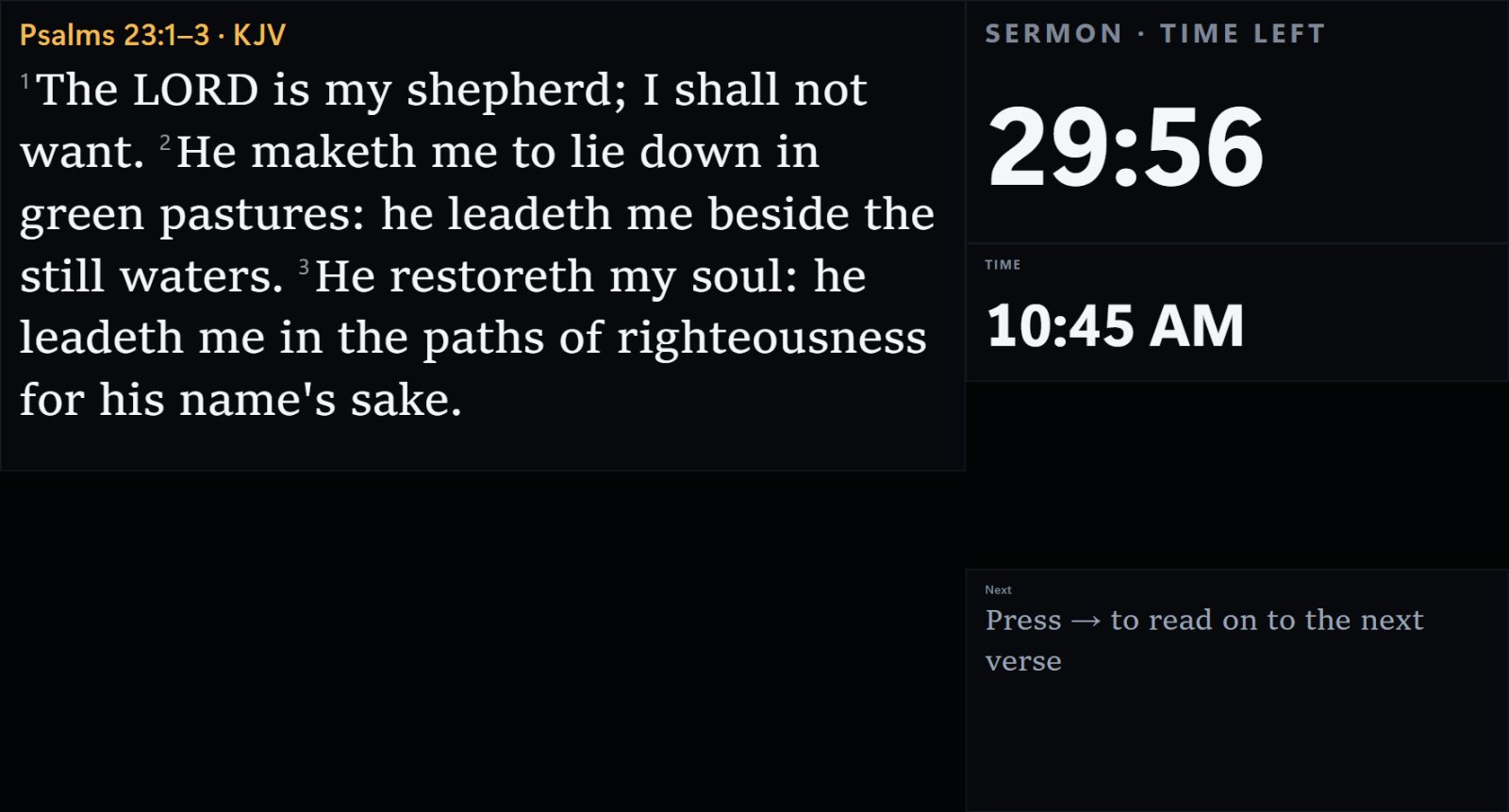
Give the preacher, singers and band their own screen with the live slide, what comes next, a clock, a sermon timer, chords, notes and messages.
Open the stage display
- Connect a screen or TV that faces the platform.
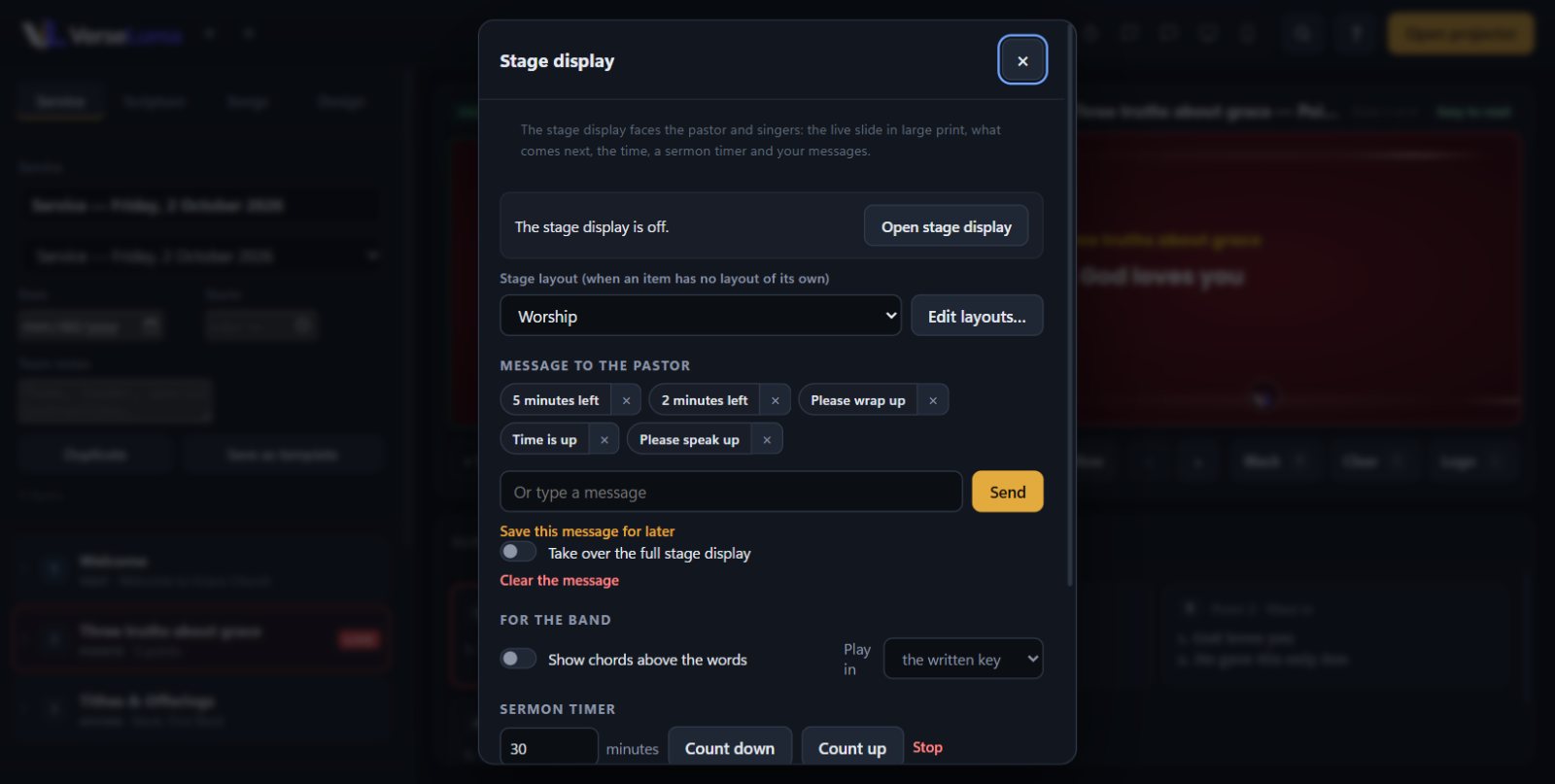
- Click the Stage display button in the top bar (the speech-bubble icon), then Open stage display. Choose its screen in Screens.
Layouts
A layout decides what the stage display shows and where. Four come ready: Worship (lyrics large, next line, chords), Preaching (passage, sermon timer, notes), Announcements and Conference.
- Choose the usual layout under Stage layout. VerseLuma can switch automatically by the kind of item that is live — songs, Scripture, sermon points, text, giving, Connect or media.
- Click Edit layouts… to rearrange: drag a box to move it, or its corner to resize it. Boxes: current slide, next slide, clock, sermon timer, projector countdown, messages, stage notes and projector status.
- An item can use its own layout through ◐ Item options.
Sermon timer
Enter the minutes and choose Count down or Count up. In Edit layouts… set when it warns (“5 minutes left”), the warning and over-time colours, and whether it flashes when time is up. Tick Show the timer full screen to make it impossible to miss.
Messages to the pastor
Type a message (“Wrap up in 5 minutes”, “Mic 2 is off”) and send it. It appears on the stage display only. Save this message for later keeps common ones a click away; Take over the full stage display makes it fill the screen; Clear the message removes it.
For the band
Tick Show chords above the words and choose Play in a key to transpose the chords on the stage display. Songs in the service can have their own key — see Songs.
Notes and private slides
- Notes for the whole service appear in the stage display's notes box.
- Stage notes on an item (◐ Item options) appear only while that item is live.
- Stage display only items are private slides for the platform — the congregation sees just the background.