

User manual › Chapter 12
Phones and remote
Let the congregation follow along on their phones, control slides from a phone, and share the overlay address with streaming software.
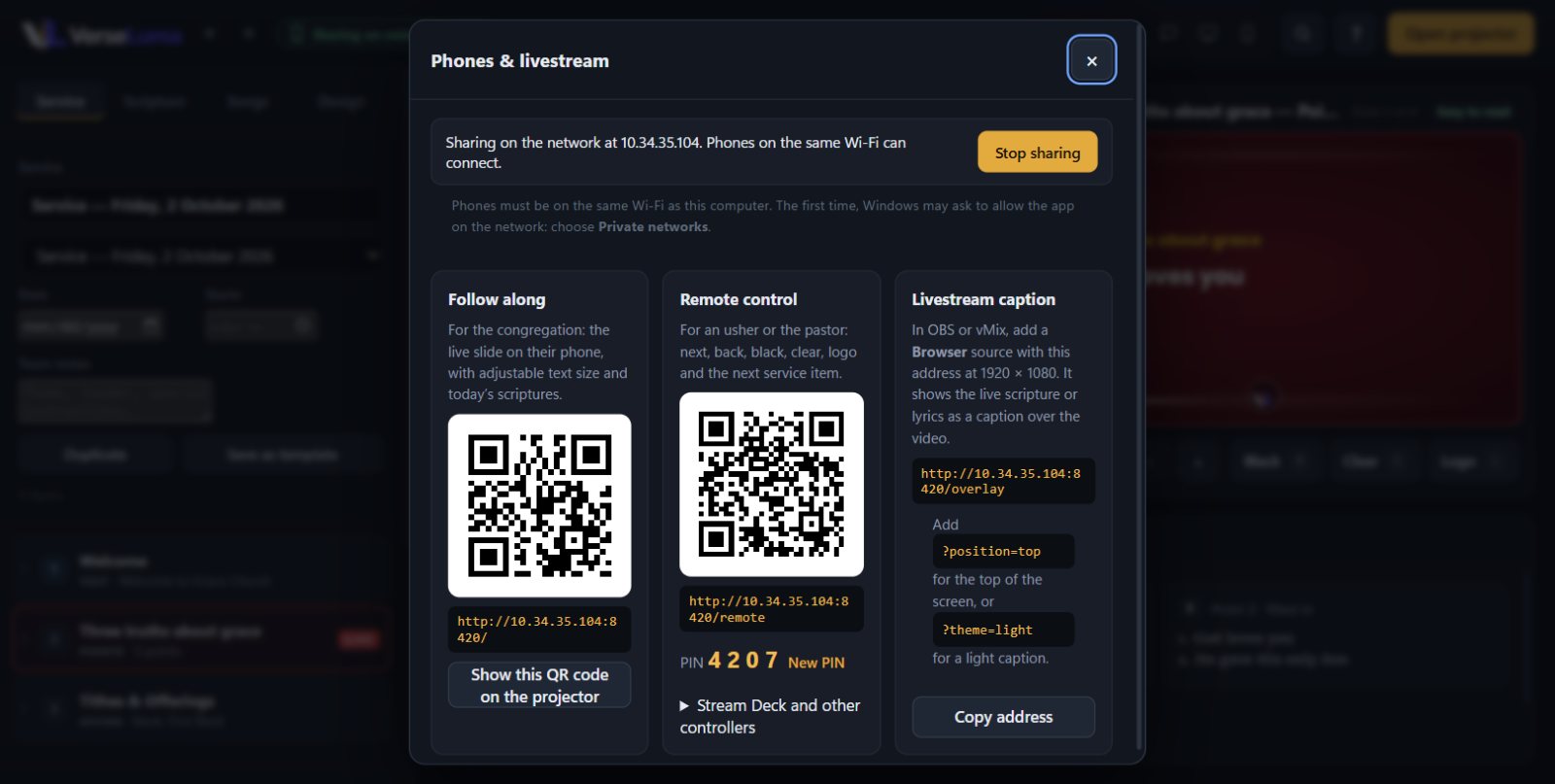
Turn on sharing
- Click the phone icon in the top bar to open Phones & livestream.
- Click Start sharing. VerseLuma shows the computer's address on the church network.
- The first time, Windows may ask whether VerseLuma can use the network. Choose Private networks and allow it.
Same Wi-FiPhones must be on the same network as this computer. Sharing stays inside your building — nothing goes to the internet.
Follow along (for the congregation)
Anyone who scans the Follow along QR code sees the live passage or song on their phone, can make the text bigger or smaller, and can look back at today's Scriptures. Click Show this QR code on the projector to put a “scan to follow along” slide on Preview.
Remote control (for an usher or the pastor)
- Scan the Remote control QR code.
- Enter the 4-digit PIN shown in the dialog.
- Use the big buttons: next and previous slide, go live, black, clear, logo and the next service item.
The PIN stays the same each time you start sharing, so phones and Stream Deck buttons keep working. Click New PIN if it has been shared too widely — everyone then needs the new one. Too many wrong PINs lock that phone out for a while.
Livestream caption address
The third card gives the Browser source address for OBS or vMix. See Livestream and lower thirds.
Network projector
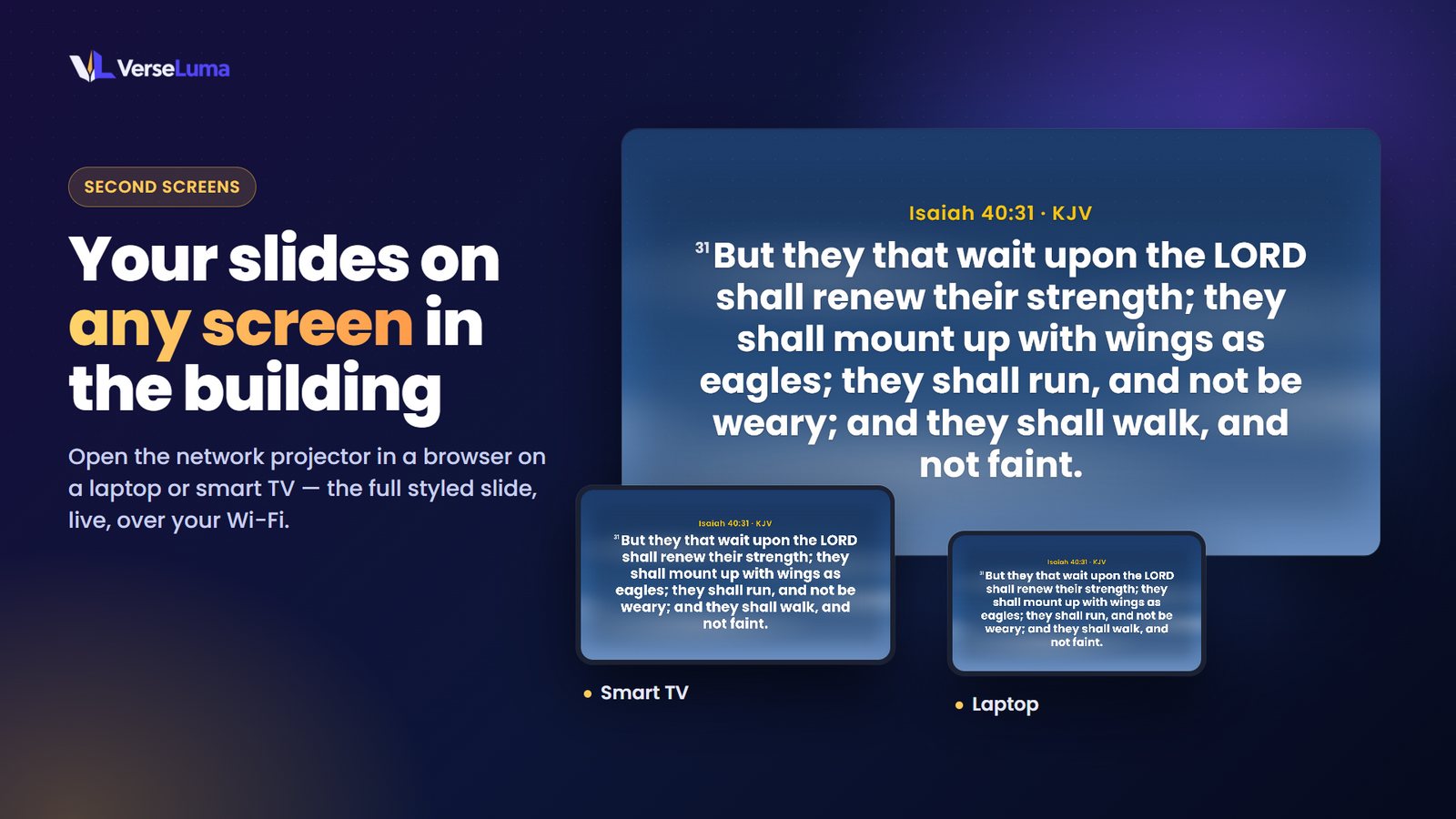
The Network projector card gives an address ending in /projector. Open it in a browser on a second computer, or on a smart TV on the same network, to show the full projector slide: background, words, reference and logo, exactly as on the projector. Double-click it for full screen. It also works as a 1920 × 1080 Browser source in OBS or vMix when you want the whole slide rather than a caption.
TipOver Wi-Fi a slide can take a moment to arrive and background videos may stutter. A network cable gives the smoothest picture.
Share a PDF handout
Give the congregation the conference programme, sermon notes or song sheet on their phones:
- Save the document as a PDF (in PowerPoint or Word: File → Save as → PDF).
- In Phones, under Conference handout, click Choose PDF….
- With sharing on, a Conference handout card shows a QR code and the address. Click Show QR on projector to put the code on screen, or Copy address to send it in a group chat.
- People scan the code on the church Wi-Fi to open or download the PDF.
Good to knowAnyone on the same Wi-Fi who has the address can open the handout, so share only documents meant for everyone. Click Clear to stop sharing it.