

User manual › Chapter 6
Order of service
Plan the running order with songs, passages, slides and media; reuse templates; set timings and per-item options.
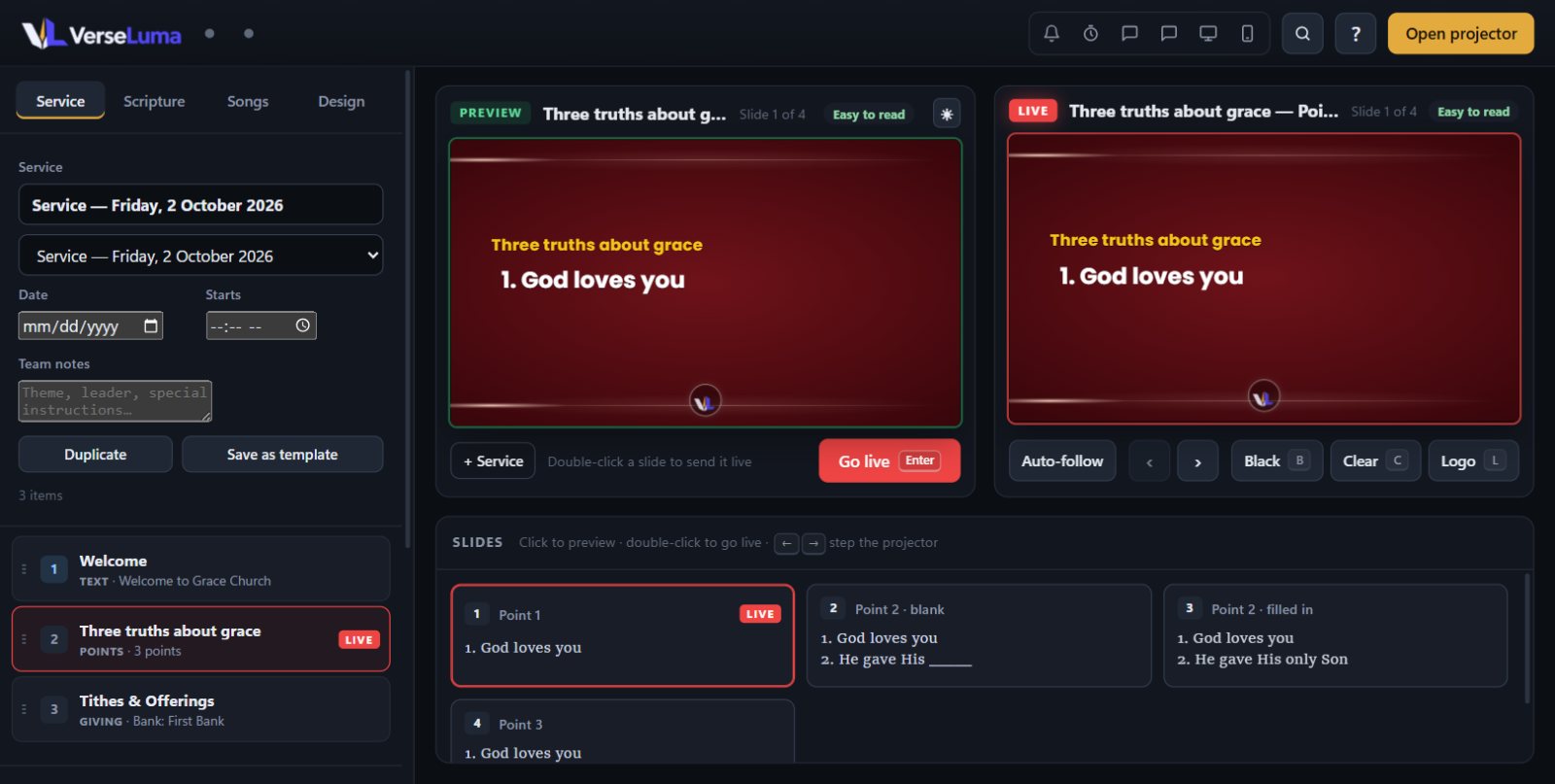
Services
Each service has a name, a date, a start time and team notes (theme, leader, special instructions). Use the list at the top of the Service tab to switch between services or start a new one. Everything saves automatically.
- Duplicate — copy this service to plan next week.
- Save as template — keep a standard order (for example “Sunday morning”) and start new services from it.
Add items
| To add | How |
|---|---|
| A song or passage | Put it on Preview, then click + Add what's on Preview (or + Service under Preview). |
| Text, sermon points, giving or Connect | Click + Text, + Sermon points, + Giving or + Connect. See Slides, giving and Connect. |
| Pictures, videos, PowerPoint or PDF | Click + Media. See Pictures, videos and PowerPoint. |
| A heading such as “Worship” or “Word” | Click + Section. Sections organise the list and are skipped when stepping through. |
| Every passage from the sermon notes | Scripture tab → Paste sermon notes… → Add all to the service. |
Run through the service
- Click an item to put it on Preview; double-click to send it live.
- Ctrl + ↓ / Ctrl + ↑ previews the next or previous item; Enter sends it live.
- The item on the projector is marked LIVE; the one on Preview is highlighted.
Item buttons
| Button | What it does |
|---|---|
| Drag handle / ↑ ↓ | Move the item up or down. |
| ✎ | Edit a text, points, giving or Connect slide. |
| ♫ | Songs only: the order and key for this service (see Songs). |
| ◐ | Item options (below). |
| ◷ | Planned duration in minutes — shown on the run sheet. |
| × | Remove the item. |
Item options
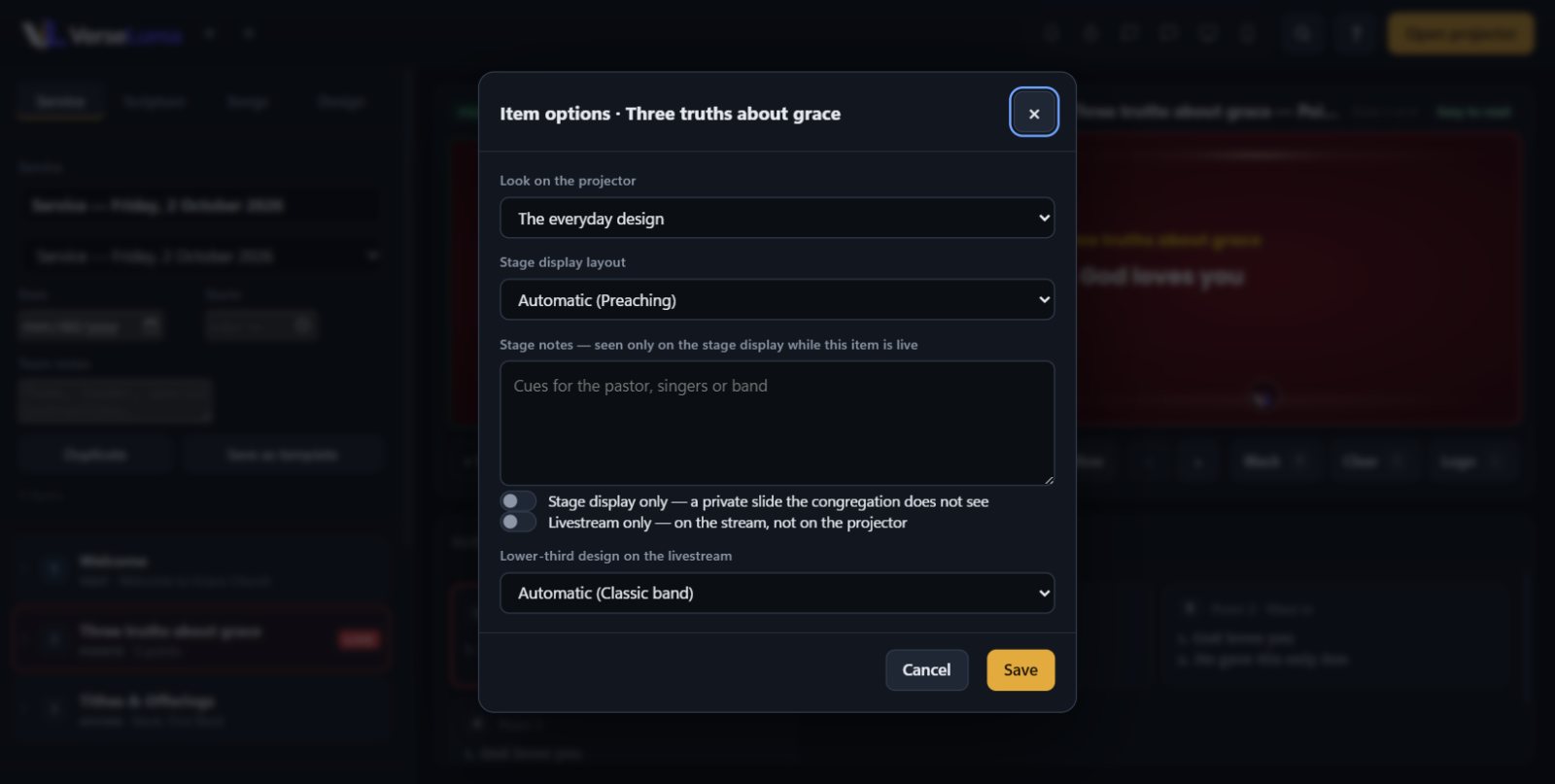
- Look on the projector — use a saved Look for this item only (see Looks).
- Stage display layout — a different stage layout while this item is live.
- Stage notes — notes only the stage display shows while this item is live (“Slow down on point two”).
- Stage display only — a private slide for the platform; the congregation sees just the background.
- Livestream only — shown on the stream, not on the projector (for example “Welcome to everyone watching online”).
- Lower-third design on the livestream — a different lower-third design for this item.
Find anything fast
Press Ctrl + K to search everything at once — passages, songs, services, slides and announcements — and jump straight to it.