

User manual › Chapter 13
Livestream and lower thirds
Put Scripture, lyrics, names and messages on your livestream as professional lower thirds — in OBS, vMix, an ATEM or any NDI system.
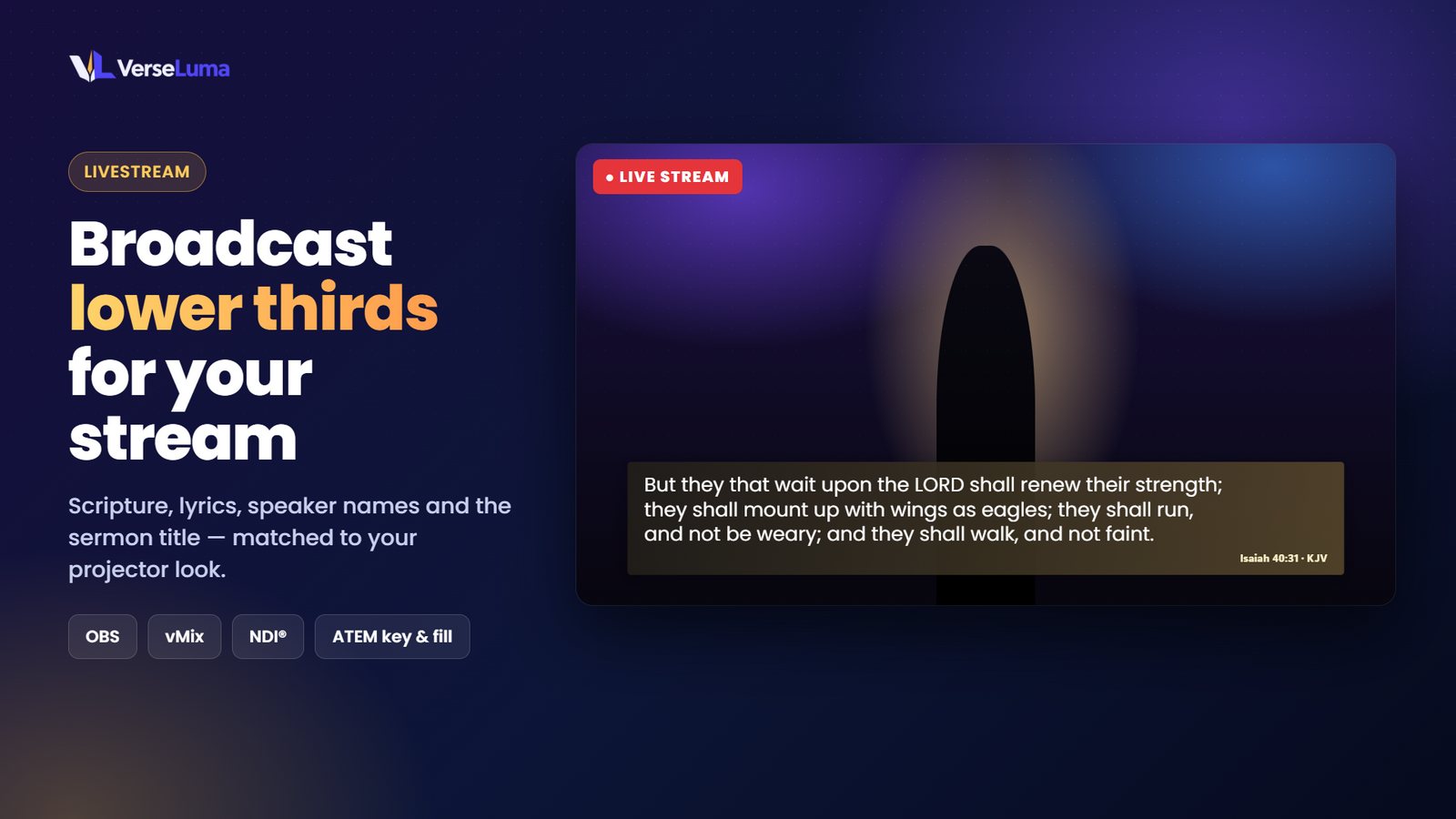
The projector shows full-screen slides for the room. Your livestream needs something different: a caption along the bottom of the camera picture — a lower third. VerseLuma makes these automatically from what is live, and adds names and messages from a rundown.
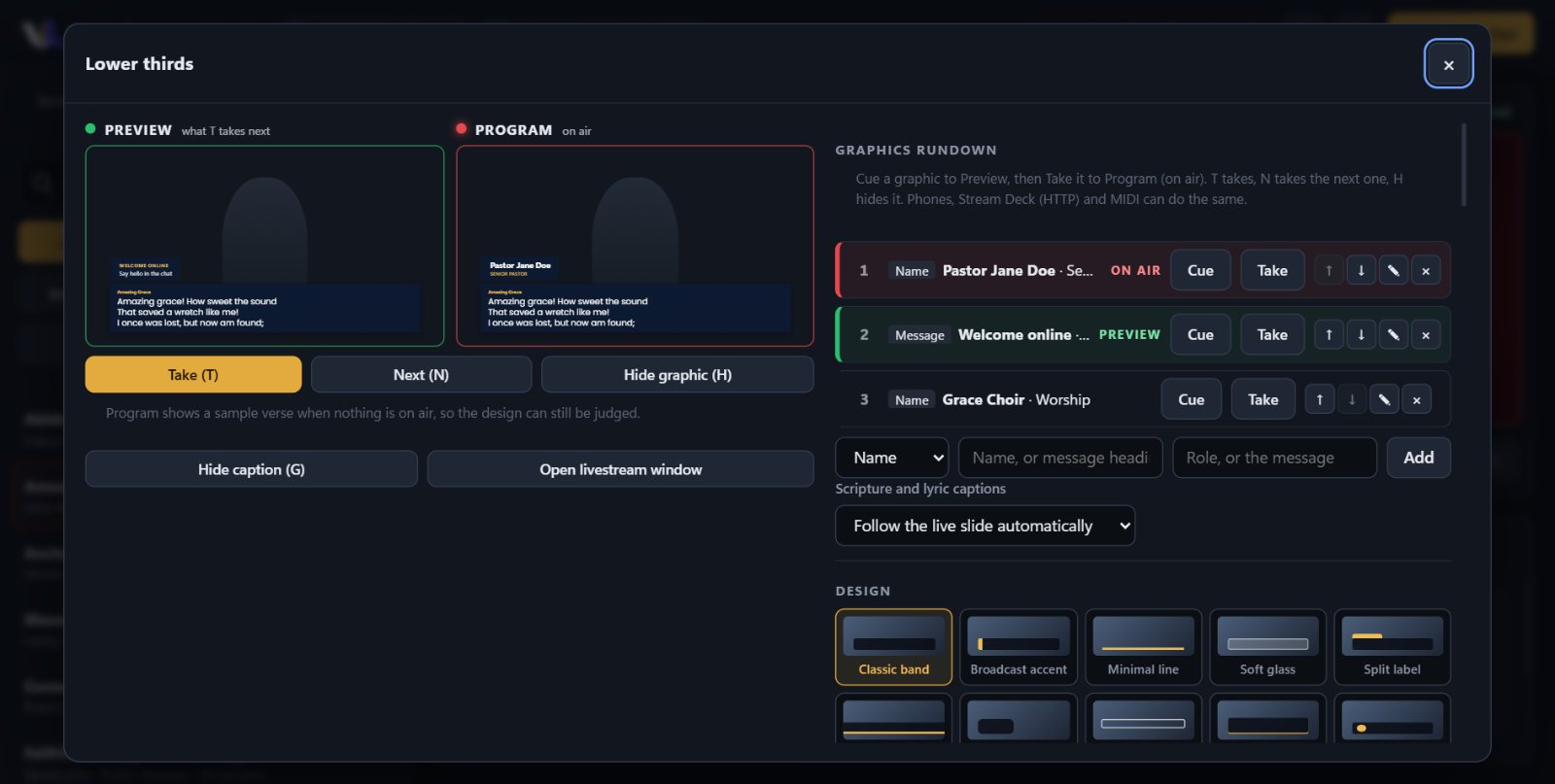
Open Lower thirds
Click the Lower thirds button in the top bar (the second speech-bubble icon). The dialog has a Preview monitor (green — what the next Take puts on air) and a Program monitor (red — what is on air now).
Connect your streaming software
Choose the method that suits your setup. You can use several at once.
| Method | Best for | Transparency |
|---|---|---|
| NDI | vMix, OBS with DistroAV, TriCaster, any NDI system — even on another computer | Real transparency |
| Browser source | OBS or vMix on the same network | Real transparency |
| Key and fill | ATEM, Roland and other hardware switchers | Through the switcher's key |
| Livestream window | Any software that can capture a window | Needs a chroma key |
NDI (recommended)
- Install the free NDI Runtime from ndi.video (once per computer).
- In Lower thirds → Output → NDI, type a source name (or keep “VerseLuma Lower Third”) and click Start NDI.
- In vMix: Add Input → NDI → choose YOUR-PC (VerseLuma Lower Third). In OBS: install the DistroAV plugin, add an NDI Source and choose it. Put it above your camera.
The status line shows how many receivers are connected. The picture is 1920 × 1080 at 30 frames a second (1080 × 1920 for vertical streams).
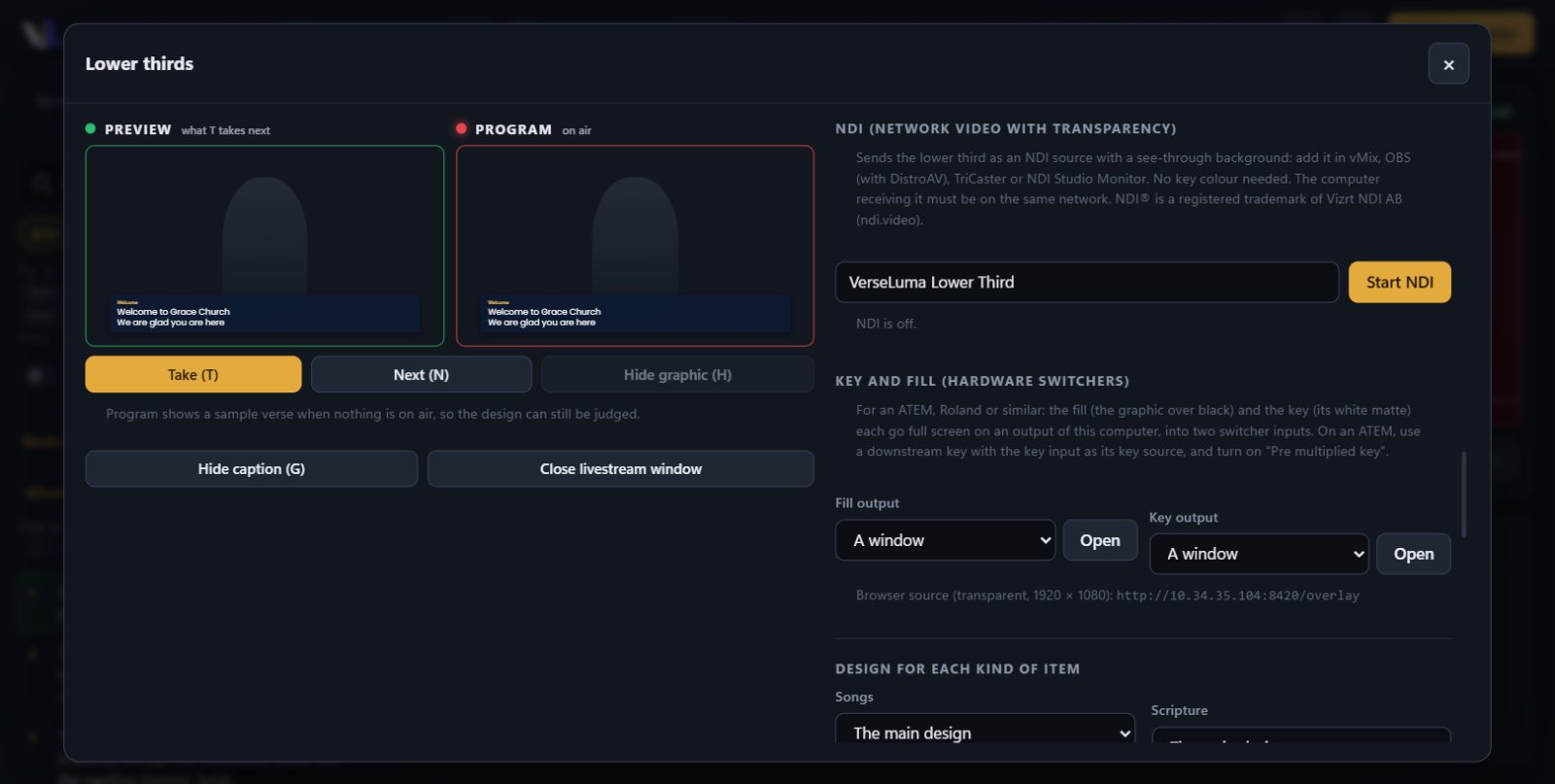
Browser source (OBS and vMix)
- Turn on sharing in Phones & livestream.
- Copy the Livestream caption address (it ends in
/overlay). - In OBS add a Browser source with that address, width 1920, height 1080. In vMix: Add Input → Web Browser.
Key and fill (hardware switchers)
- Connect two outputs of this computer to two inputs of the switcher.
- In Lower thirds → Output → Key and fill, choose the screen for Fill and for Key, and click Open for each.
- On an ATEM, set up a downstream key with the fill input as the fill source and the key input as the key source, and turn on Pre multiplied key.
Livestream window (chroma key)
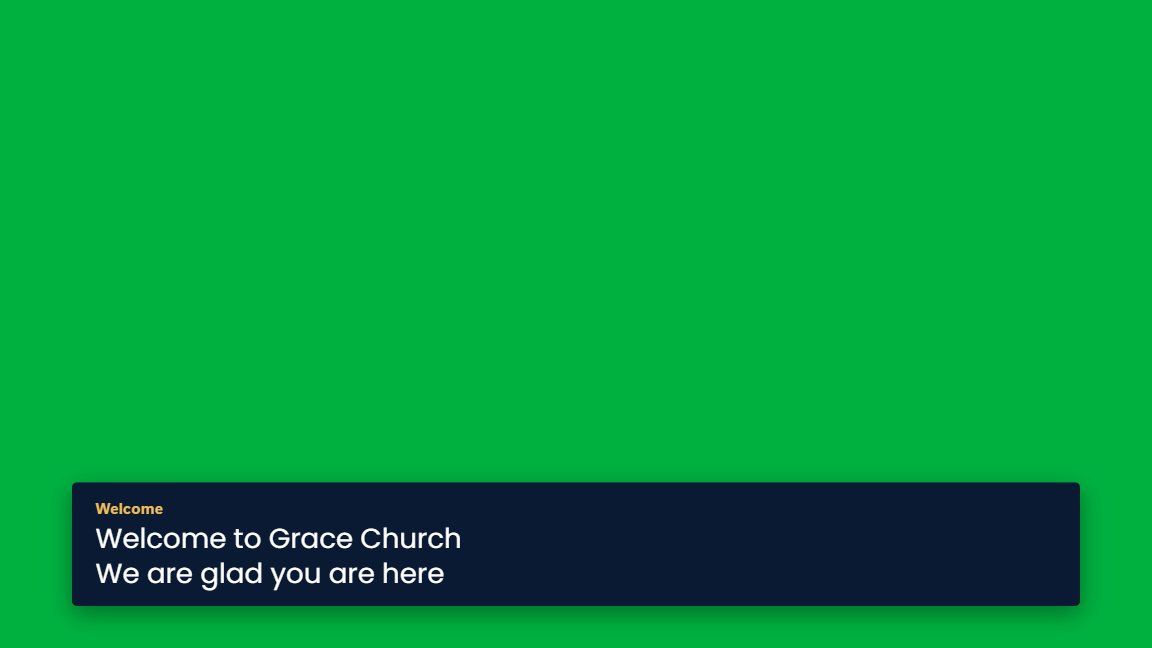
Click Open livestream window. It shows the lower third over a key colour (green by default; blue, magenta or black for a luma key). In OBS add a Window Capture of “VerseLuma Livestream” and a Chroma Key filter; in vMix use Desktop Capture and Colour Key.
Scripture and lyric captions
Whatever is live on the projector becomes a caption automatically — passages with their reference, and song lyrics. Long passages are split into readable pieces that move on at your chosen reading speed.
- Follow the live slide automatically — the caption changes with the projector.
- Wait in Preview until taken (T) — a new caption waits in Preview, with a green “Caption waiting · Take” chip in the top bar, until you press T. Ideal when the stream director wants full control.
- G shows or hides the caption at any time.
- Choose which kinds of slide appear (Scripture, songs, other slides) under Output, and give an item Livestream only in Item options to show it on the stream but not the projector.
Names and messages: the graphics rundown
- Under Graphics rundown, add Names (“Pastor Jane Doe · Senior Pastor”) and Messages (“Welcome online · Say hello in the chat”) in the order you will use them.
- Click Cue to put one in Preview.
- Press T (or Take) to put it on air. The next one is cued automatically.
- Press N to take the next graphic in one step, and H to hide it.
Rows are marked PREVIEW (green) and ON AIR (red). Names saved under Name titles can be added with + Rundown, or shown at once with Show now. Set how long a graphic stays up, or 0 to keep it until hidden.
Speakers in a hurry
- Under Name titles, click + Conference Host, + Guest Speaker, + Panelist, + Interpreter or + Moderator, type the name, and the title is saved with that role.
- Or write the speakers in the service’s notes, one per line, as
Pastor John Doe | Guest SpeakerorPastor John Doe — Guest Speaker, then click Import from service notes. Other lines in the notes are left alone.
Designs, themes and motion
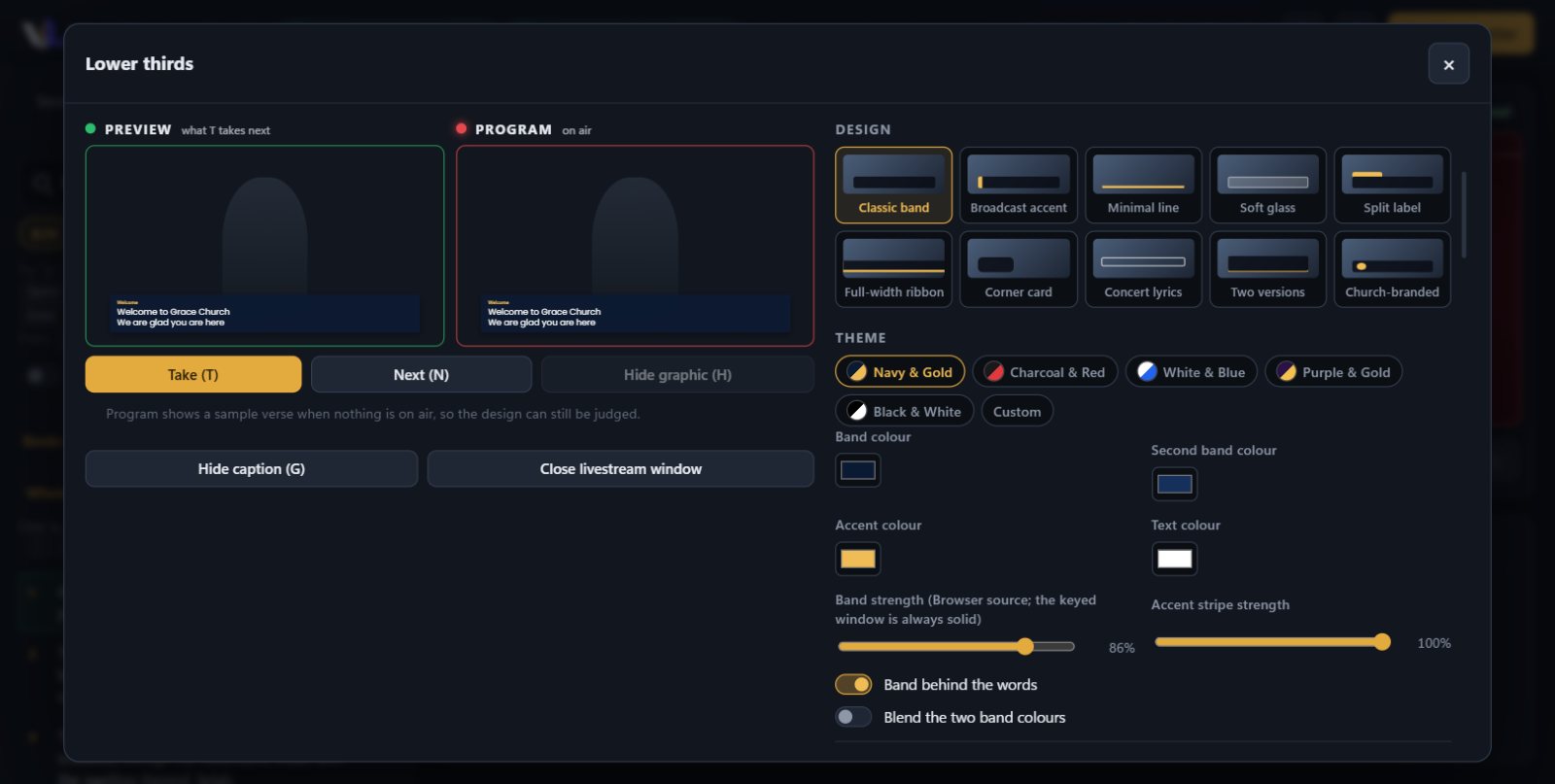
- Design — Classic band, Broadcast accent, Minimal line, Soft glass, Split label, Full-width ribbon, Corner card, Concert lyrics, Two versions and Church-branded.
- Theme — Navy & Gold, Charcoal & Red, White & Blue, Purple & Gold, Black & White, or your own colours.
- Text — font, size, most lines at once, reading speed, and where the reference sits.
- Motion — entrance (fade and rise, slide, wipe, scale or cut), speed, motion curve (Broadcast, Smooth, Spring, Gentle), and a staggered entrance where the band arrives first, then the words.
- Logo — your church logo left or right of the text.
- Output — caption at the top or bottom, landscape or vertical (phone streams), side margin and soft edges.
- Design for each kind of item — for example Concert lyrics for songs and Broadcast accent for Scripture.
- Saved sets — save all these settings and switch back later.
Sermon title, matching look and long passages
- Sermon title — type the title and, if you like, the series or preacher. Show now puts it on the stream for a few seconds; Show again every brings it back every few minutes for viewers who join late.
- Match the projector look — the band takes its colours and font from the background and style in the Design tab, so the room and the stream look the same.
- Long passages move on in parts by themselves; a thin line along the band shows how far through the passage you are.
- Name titles (“Pastor Jane Doe · Senior Pastor”) hide on their own after the time you set.