

User manual › Chapter 9
Design, Looks and branding
Choose backgrounds and text styles, keep words readable, save Looks for different moments, and add your church's name, logo and links.
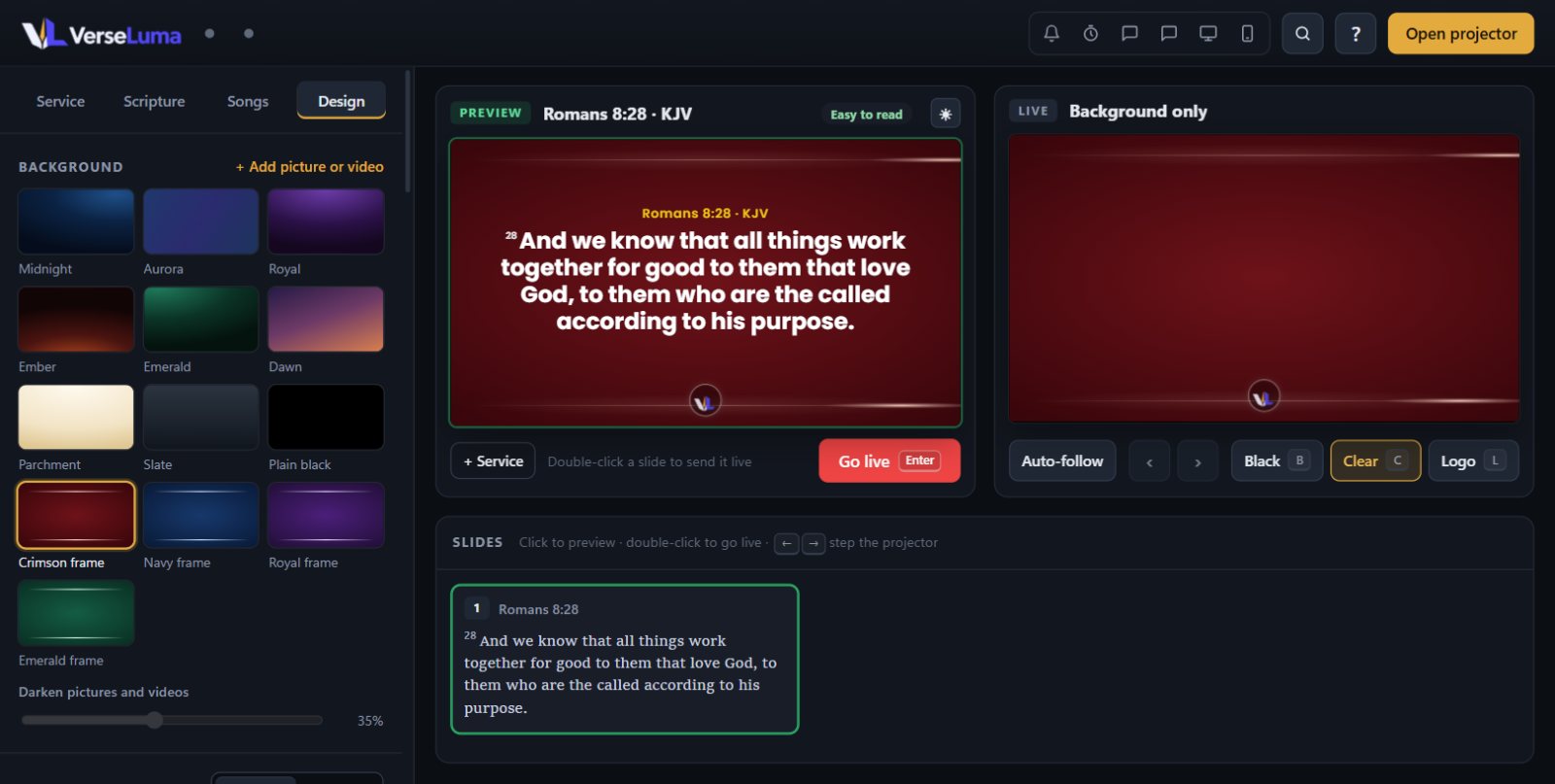
Ready-made styles
At the top of Design → Text, one click on Broadcast Gold, Royal, Worship, Clean Sermon, Hymnal, Candlelight or Emerald Praise sets the background, fonts, colours, where the reference sits and how the words arrive. Fine-tune anything afterwards, and save it as a Look.
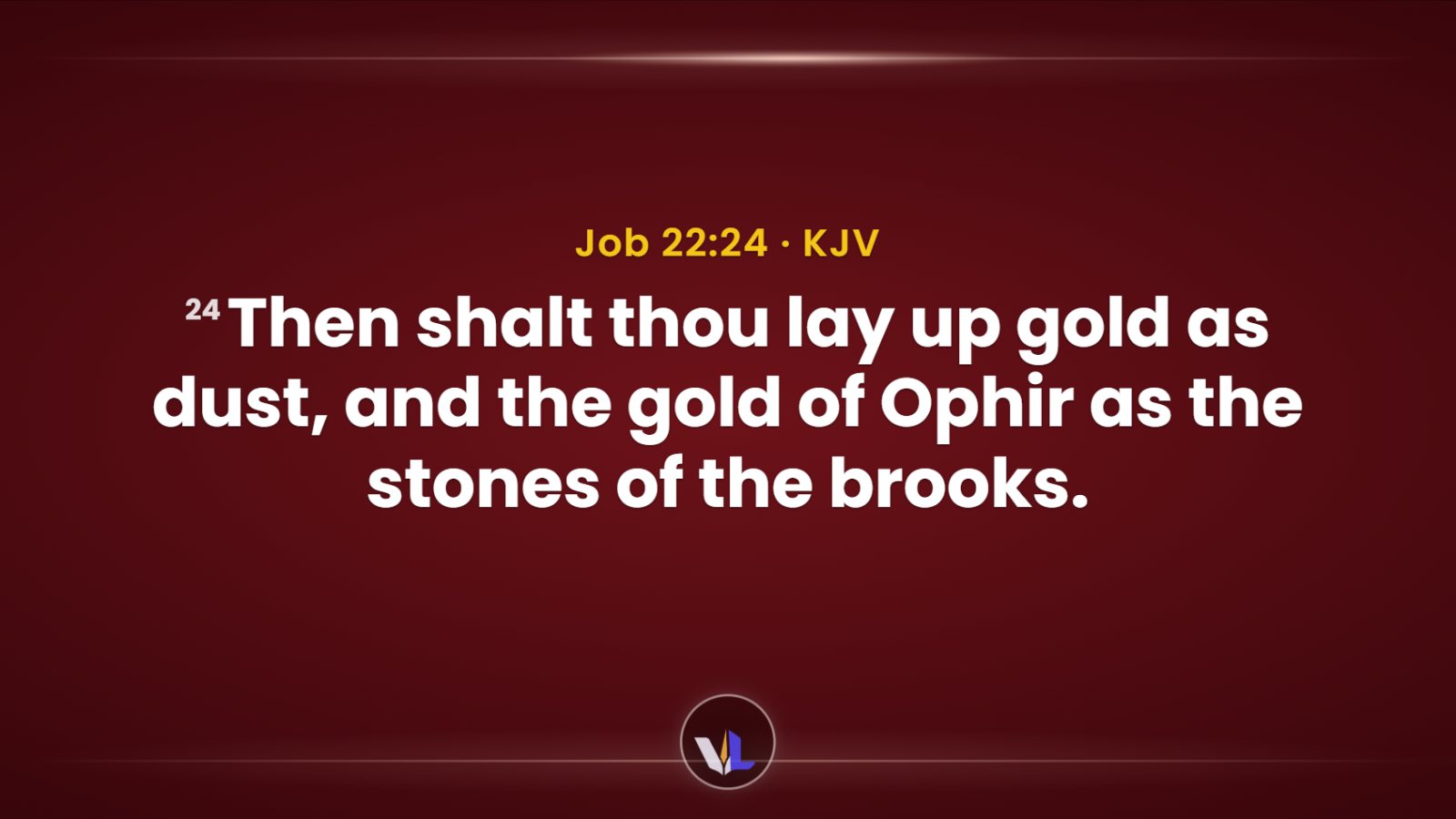
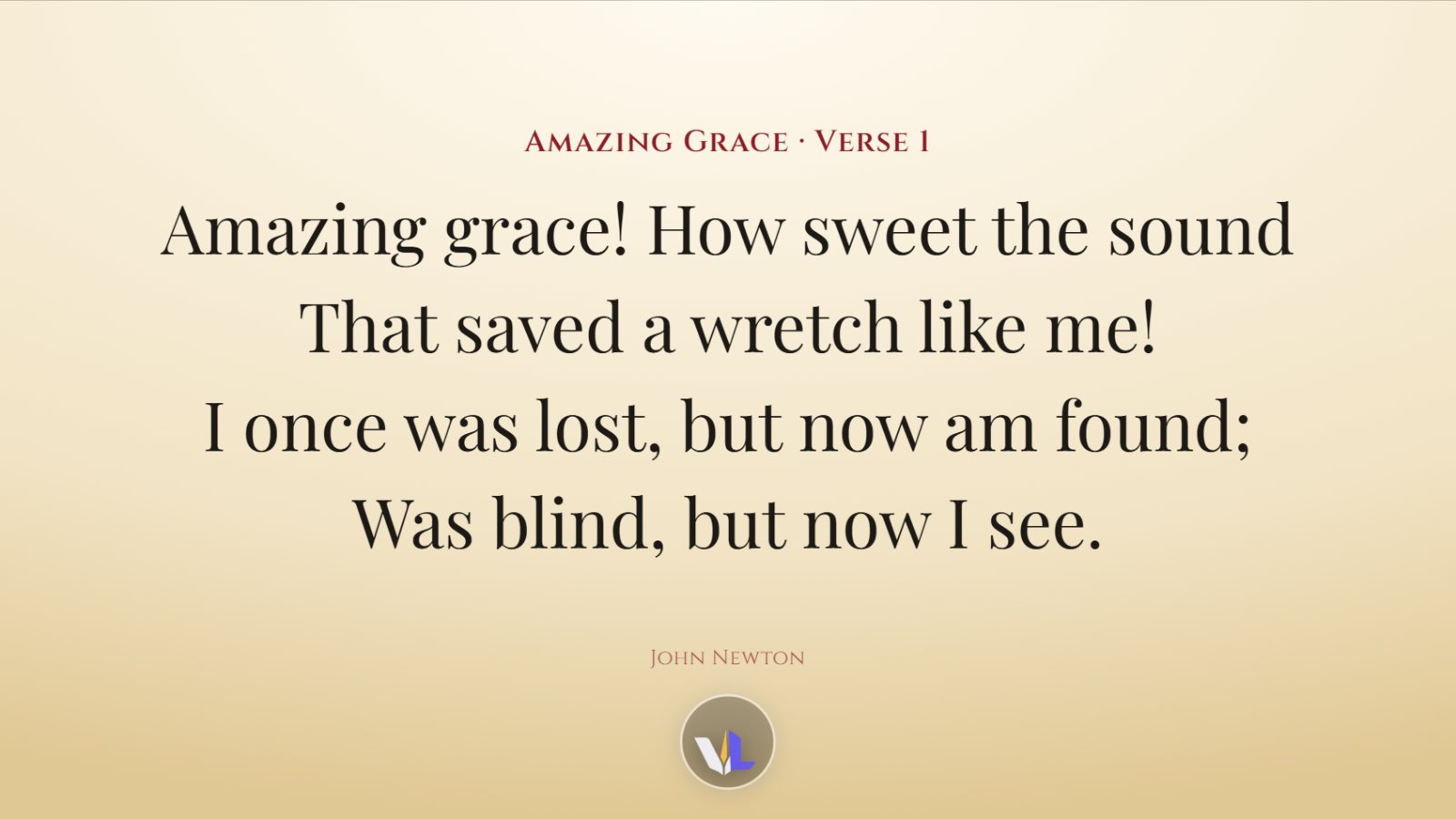
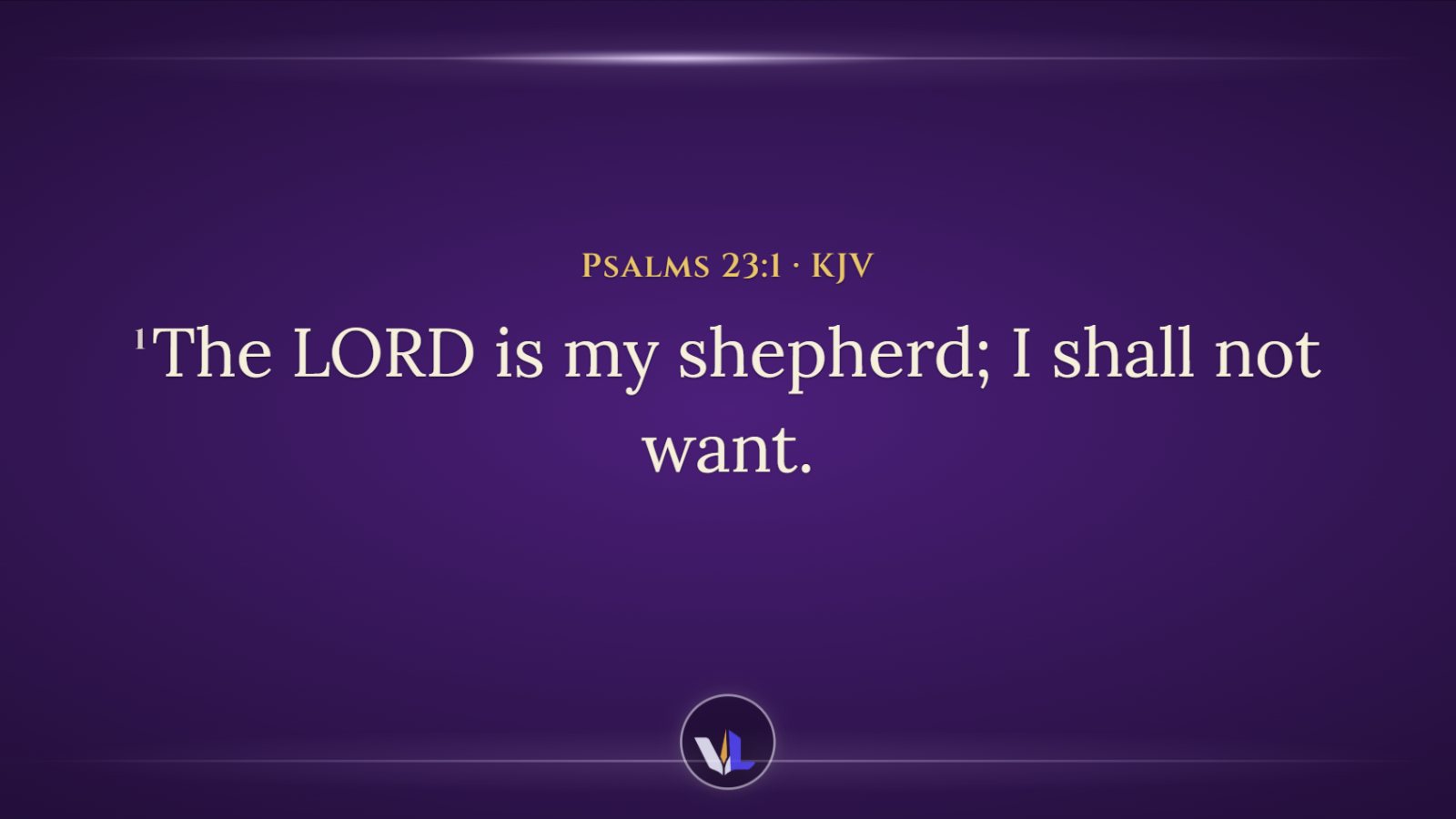
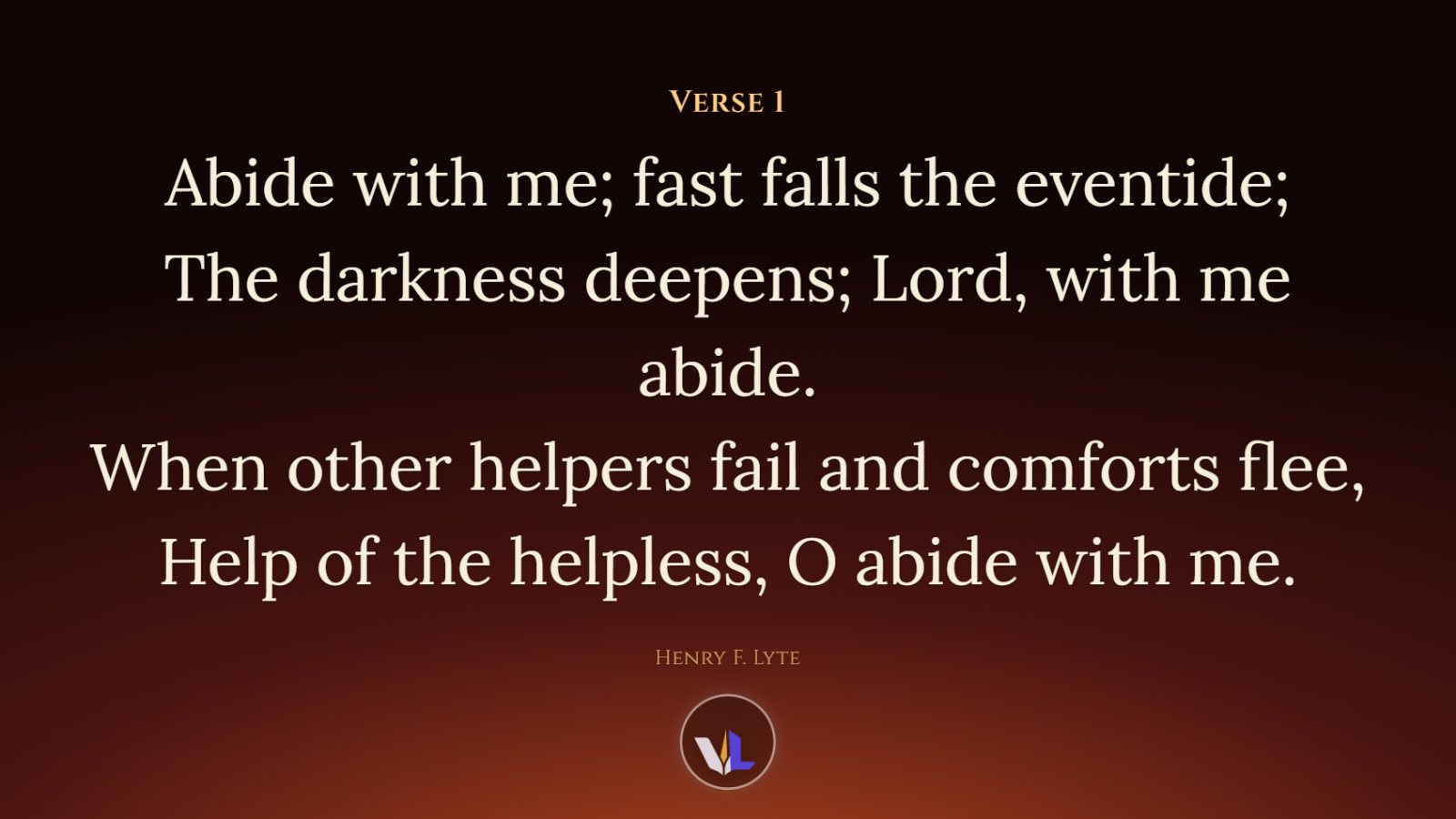
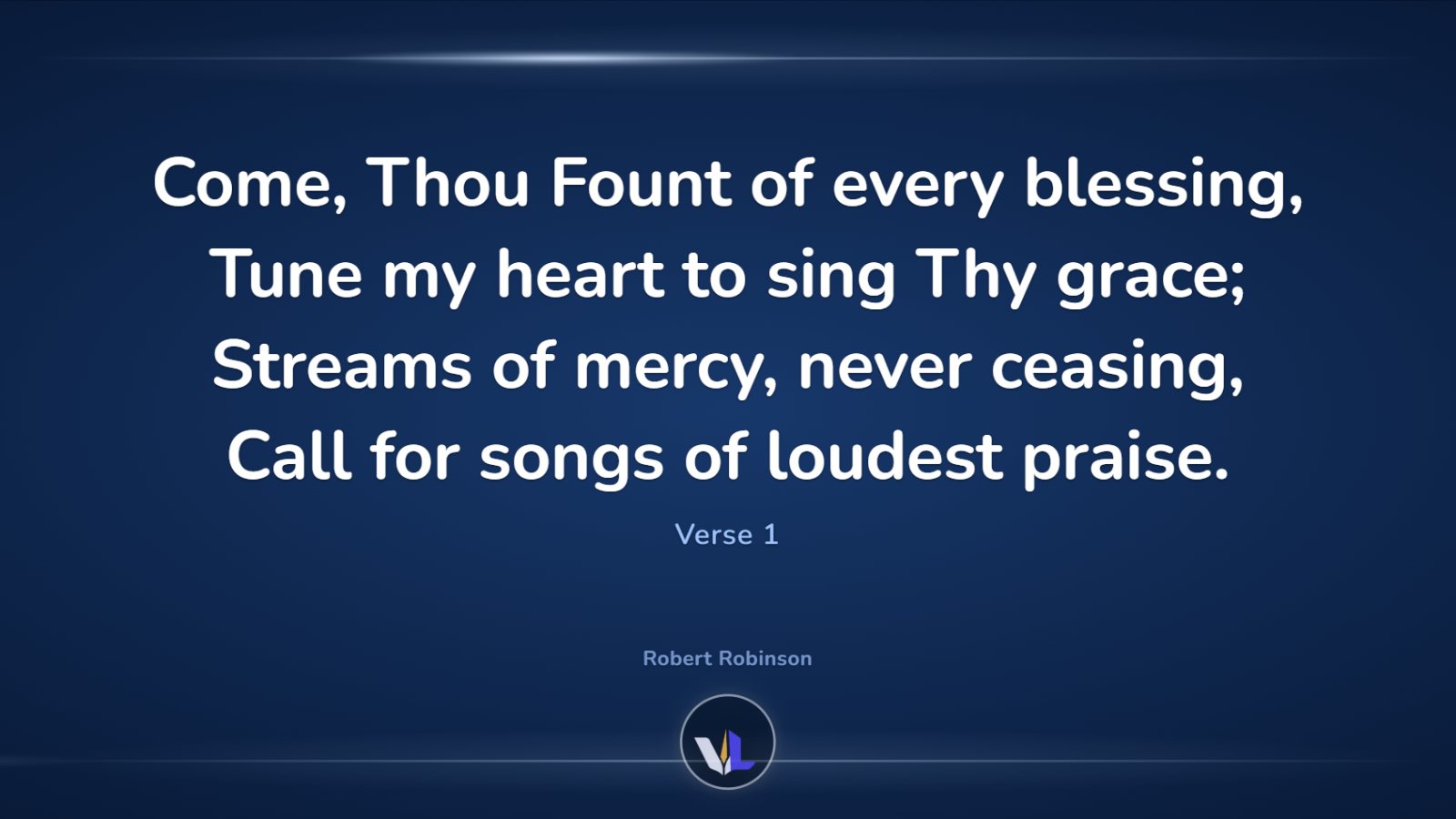
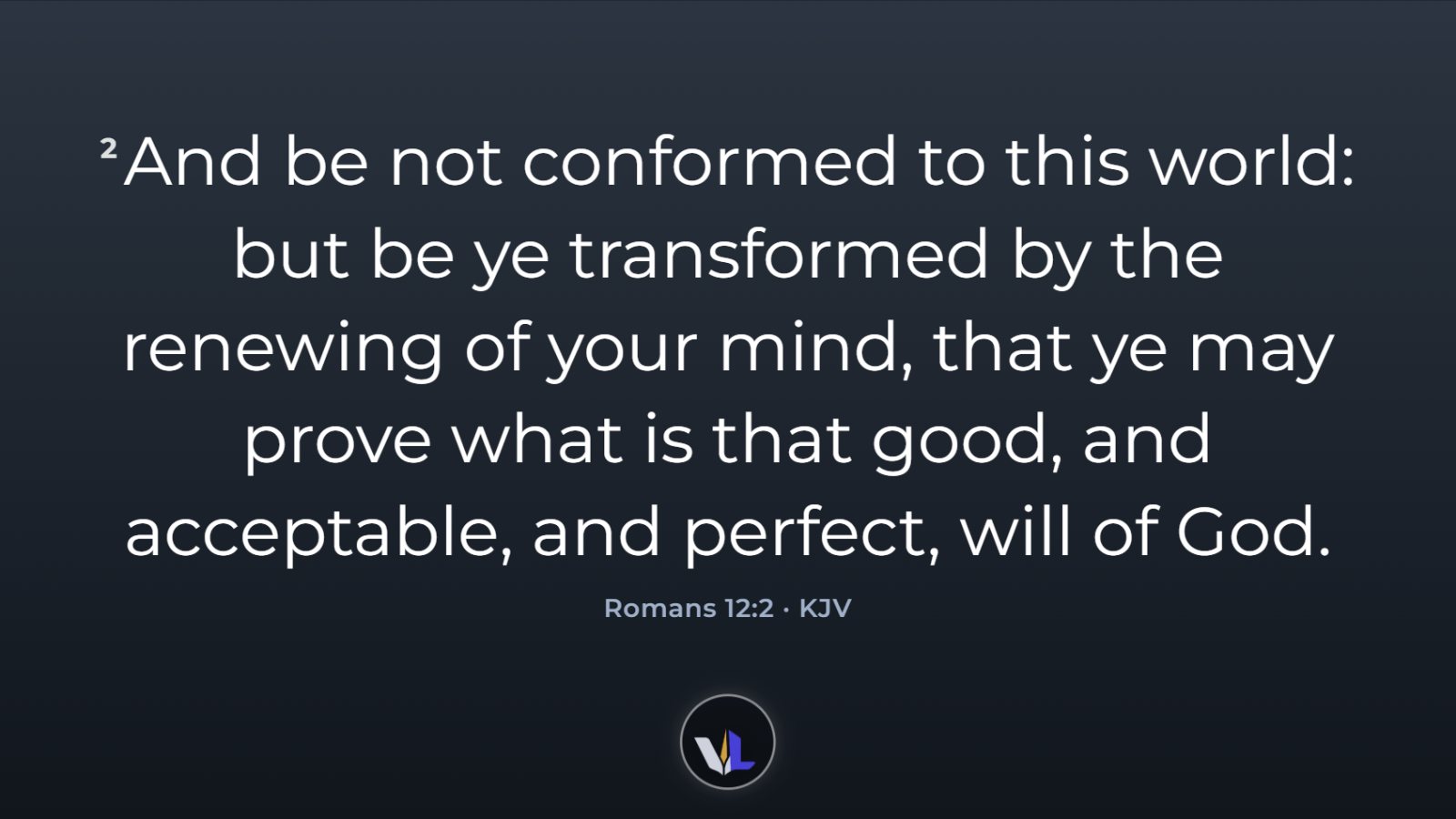
TipA style replaces your current background, fonts and colours. Save your design as a Look first if you may want it back.
Background
- Pick one of the built-in backgrounds (Midnight, Aurora, Royal, Ember, Emerald, Dawn, Parchment, Slate, Plain black).
- Click + Add picture or video to use your own. Videos loop silently behind the words.
- Darken pictures and videos keeps busy pictures from fighting with the text.
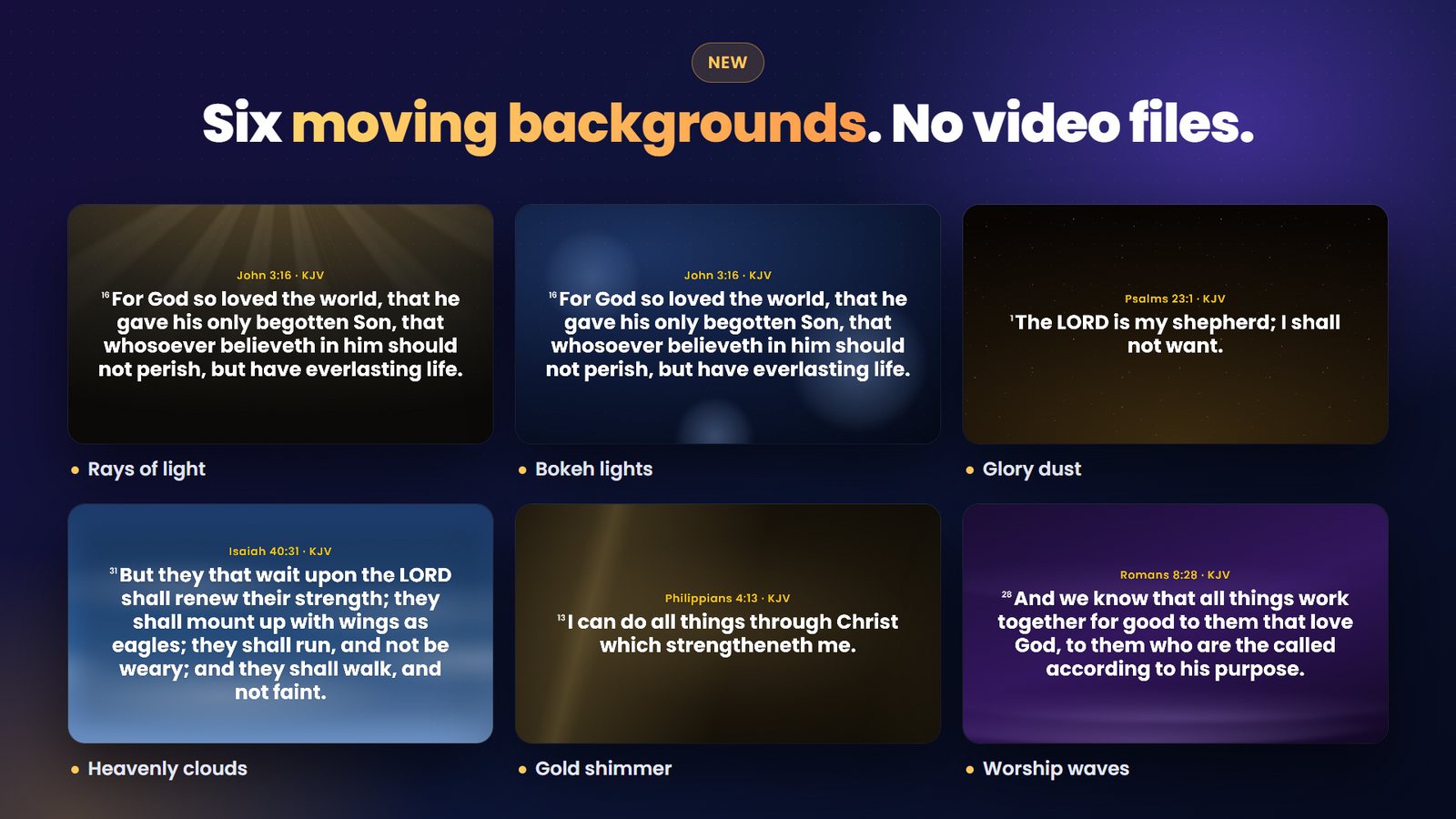
- Eighteen moving backgrounds drawn by VerseLuma itself, with no video files and smooth on older laptops: Glory dust, Bokeh lights, Rays of light, Heavenly clouds, Worship waves, Gold shimmer, Cross of light, Dove descending, Starfield, Living water, Flame, Aurora ribbons, Golden swirl, Stained glass, Mountain sunrise, Rain on glass, Light tunnel and Paper and ink.
- Paper and ink is light: choose dark text (Ink) in Design → Text so the words stand out.
- Gently move pictures gives any still picture a slow zoom and drift.
- The frame backgrounds (Crimson, Navy, Royal, Emerald) have soft light flares gliding along the top and bottom edges.
Text
Quick shows ready-made styles — Clean, Cinematic, High Contrast, Soft Shadow, Bold Outline and Lower Third. Click one and you are done.
Advanced lets you change everything:
- Colours and fonts — text colour, font, size, and a separate font for titles and references. Seven fonts come with VerseLuma and work on every computer: Poppins, Montserrat, Nunito, Playfair Display, Cinzel, Lora and Merriweather.
- Outline and shadow — strength, colour and softness.
- Spacing and fitting — line and letter spacing, alignment, and the smallest size text may shrink to. Longer text is flagged on the monitors.
- Behind the text — a translucent panel behind the words.
- References and verse numbers — where the reference sits and how verse numbers look.
- Show the safe margin on the monitors — check nothing gets too close to the edge of the projector.
Adaptive Readability
With Adaptive Readability on, VerseLuma checks the contrast between the words and the background behind them on every slide, and adds just enough outline, shadow or darkening to keep them easy to read. The badge on each monitor shows the result: Easy to read, Readable or Hard to read.
Slides
- Max lines per slide — “Auto” lets VerseLuma decide; fewer lines means bigger text and more slides.
- Second version beside it — show a second Bible version next to the first.
- On song slides, show — the verse name, the song title, or both (“Amazing Grace · Verse 1”), placed and coloured like a Scripture reference.
- Text entrance — None, Fade, Rise or Zoom: the words arrive, then the reference.
- Reference — Above or Below keeps it right next to the passage (set the gap with Space between passage and reference); Top edge and Bottom edge pin it to the edge of the slide; or Hidden.
Looks
A Look is a saved design. Make a bright look for worship and a calm one for the sermon:
- Set up the design you want, then click + Save current design under Looks and name it.
- Give a song its own Look in the song editor (Look), or any service item through ◐ Item options.
How passages are split into slides always follows the Design tab, so the slides stay the same whichever Look is used.
Church branding
- Upload logo — a PNG with a see-through background looks best. Turn on White card behind the logo for dark logos.
- Church or ministry name and Line under the name — shown on the logo screen (L).
- Logo screen shows — logo and name, logo only, or name only.
- Logo on every slide — in a corner or centred at the top or bottom (the words make room for it), with size and strength controls. Corner logo as a round badge shows it in a circle, like an emblem.
- Social media & links… — your links for Connect slides (see Connect slides).
Backup & restore
Also in the Design tab — see Backups.