

User manual › Chapter 10
Running the service
Preview and Live, black, clear and logo screens, alerts, countdowns and the keys you will use every Sunday.
Preview and Live
VerseLuma always works in two steps, so nothing reaches the projector by accident:
- Preview (green): choose and check the next slide.
- Live (red): press Enter or Go live to send Preview to the projector.
While something is live, → and ← step through its slides on the projector. Click a slide to preview it, double-click to put it live.
Black, clear and logo
| Key | Screen | Use it when |
|---|---|---|
| B | Black | Prayer, or nothing should be on screen. |
| C | Clear — background only | Between items; the room keeps its atmosphere. |
| L | Logo | Before and after the service. |
Press the same key again (or the highlighted button) to return to the slide.
Alerts
Click the bell in the top bar to scroll a message along the bottom of the projector without interrupting what is on screen — even a black screen. Useful for “Parents of child 23, please come to the nursery”. Choose to scroll once, twice, three times or until you stop it, and save common alerts for next time.
Countdowns
Click the timer in the top bar to fill the projector with a countdown over the current background: count down for a number of minutes or to a time, with words above it (“Service begins in”). Press Esc or Stop the countdown to leave it.
Pre-service loop
Cycle announcements and slides before the service with a corner countdown — see Pre-service loop.
Conference mode and the health light
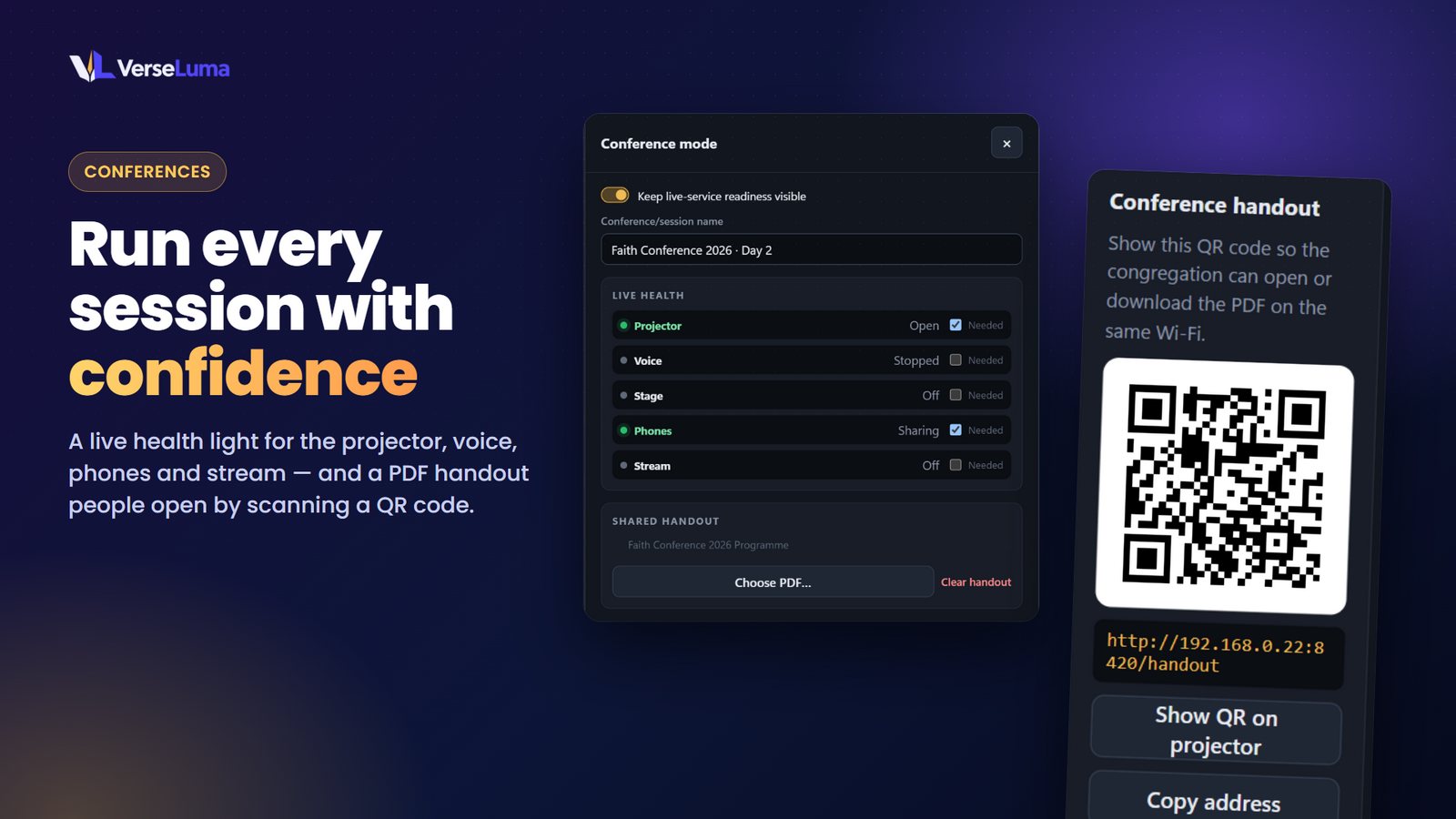
The Health light in the top bar shows at a glance whether everything you rely on is running.
- Click it to see Projector, Voice, Stage, Phones and Stream, each open or off.
- Tick Needed beside the ones your church uses. Only those count: the light is green when they are all running and amber when one is off — for example if the projector window was closed by mistake.
- For a conference, turn on Keep live-service readiness visible and give the session a name (“Faith Conference · Day 2”). A Conference chip stays in the top bar, and the light reads “Conference 3/3”.
The same dialog lets you choose a PDF handout to share.
If the power goes off
VerseLuma remembers what was on screen. After a crash or power cut, open it again: it brings back the service and the live slide where you were, and shows a short “Recovered after an unexpected shutdown” message.
Keys you will use every Sunday
| Key | Action |
|---|---|
| Enter | Send Preview live |
| → ↓ Space Page Down | Next slide |
| ← ↑ Page Up | Previous slide |
| Ctrl + ↓ / ↑ | Preview the next / previous service item |
| B C L | Black, clear, logo |
| Ctrl + K | Search everything |
| Esc | Cancel a countdown or close a panel |
| ? | Show all shortcuts |
The full list, including songs and livestream keys, is in Keyboard, Stream Deck and MIDI. If the projector or stage display window has the focus, the slide keys and B C L still work.