

User manual › Chapter 3
Scripture
Search and show Bible passages, switch versions, import Bibles and share a summary of every passage after the service.
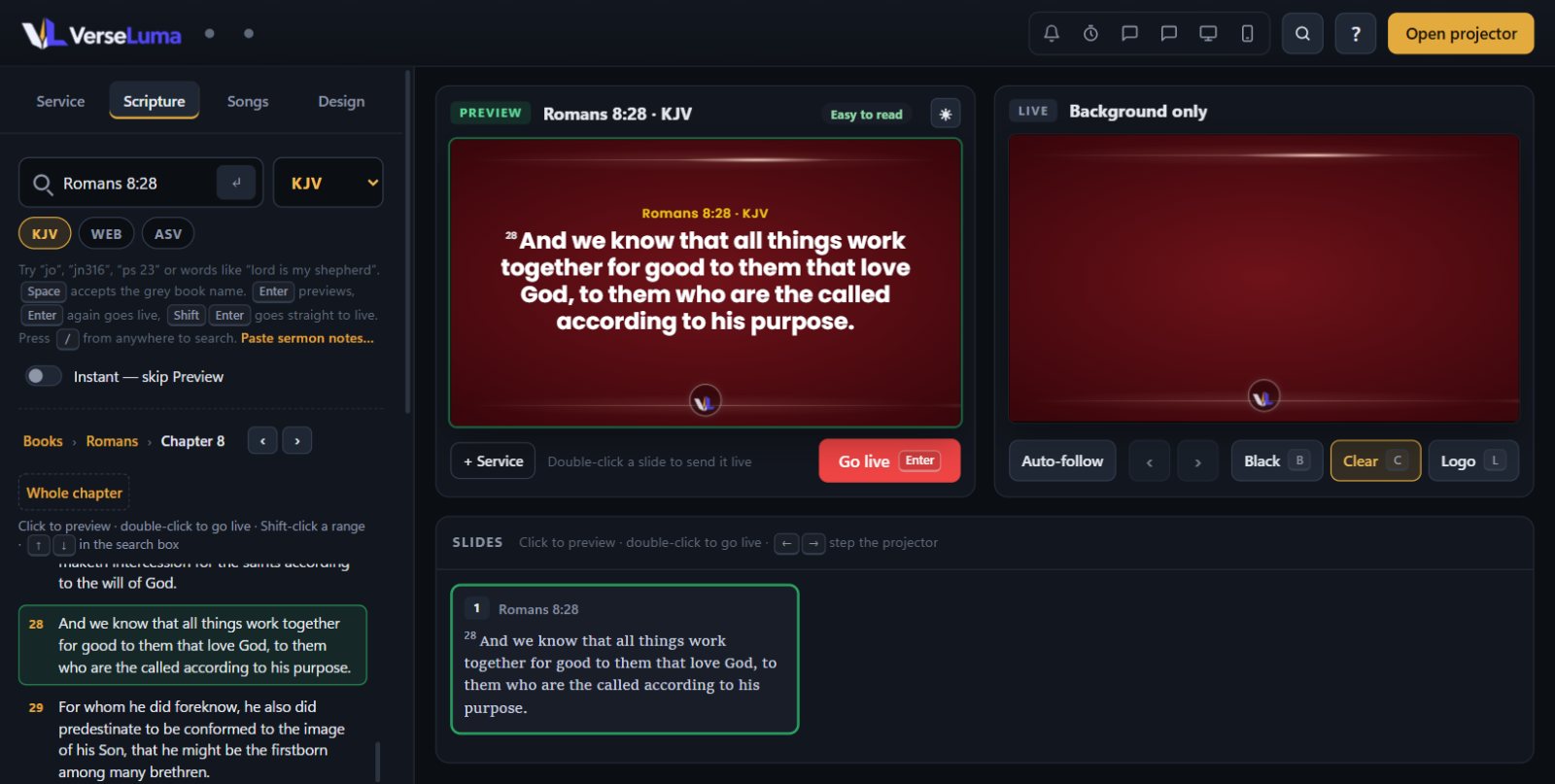
Find a passage
Type in the search box at the top of the Scripture tab. VerseLuma understands many ways of writing a reference:
| You type | You get |
|---|---|
john 3 16 or John 3:16 | John 3:16 |
jn316 | John 3:16 — short forms without spaces work |
jo | Suggestions: John, Job, Joel, Jonah, Joshua… |
ps 23 | Psalm 23 from verse 1 |
rom 8 28-30 | Romans 8:28–30 |
lord is my shepherd | Verses containing those words |
- Enter puts the passage on Preview; Enter again sends it live.
- Shift + Enter sends it straight to the projector.
- Ctrl + F or / jumps to the search box from anywhere.
- The book buttons (Gen, Exod…) are a quick way to browse: click a book, then a chapter, then a verse. Switch between the Old and New Testament above them.
Quick picks and the current chapter
- Results are grouped — Current chapter, Books, Reference, Quote and word matches — so you can see at a glance what each one is.
- Press Alt + 1 to 9 to choose a result directly, without the arrow keys.
- While a chapter is in Preview or Live, type just the verse — 17 or v 17-19 — to get those verses of the same chapter.
Book names complete as you type
Type the start of a book — joh — and the rest appears in grey inside the box (“John”). Press Space (or Tab or →) to accept it, then type the chapter and verse: joh Space 3 16 Enter. Common misspellings such as “jhon”, “mathew”, “genisis” or “ezekial” are understood too.
The chapter list
When you find a passage, its whole chapter appears under the search box as a list of verses, with your passage highlighted.
- Click a verse to preview it; double-click to send it live; Shift-click another verse for a range.
- In the search box, ↓ and ↑ put the next or previous verse on Preview, and Enter sends it live — the quickest way to follow a preacher verse by verse.
- Use the ‹ › buttons beside the chapter name for the previous or next chapter.
Reading through a passage
Long passages are split into slides automatically. Press → to move on and ← to go back — even past the end of what you searched, VerseLuma keeps reading the next verses. How many verses fit on a slide is set in Design.
Bible versions
The King James Version (KJV), World English Bible (WEB) and American Standard Version (ASV) are included. Switch version with the buttons under the search box or the version list beside it. You can also show a second version beside the first (Design → Second version beside it).
Import another Bible
- Open the version list beside the search box and choose Manage versions…, then Import a Bible…
- Choose the file. Supported: EasyWorship (
.ewb), e-Sword (.bblx), MySword (.mybible), MyBible (.SQLite3), Zefania or OSIS XML, USFM, and text, CSV or JSON with book, chapter, verse and text columns.
CopyrightNKJV, NIV, NLT, ESV and most modern versions are copyrighted. Import them only from copies your church is licensed to use.
Paste sermon notes
Click Paste sermon notes… under the search box and paste the preacher's notes. VerseLuma finds every Scripture reference in them; click Add all to the service to line them up in order.
Scripture summary
Every passage shown on the projector is recorded. After the service, click Scripture summary at the bottom of the Service tab to copy the list, save it, print it, or Copy for WhatsApp to share it with the church.
Find a verse from its words
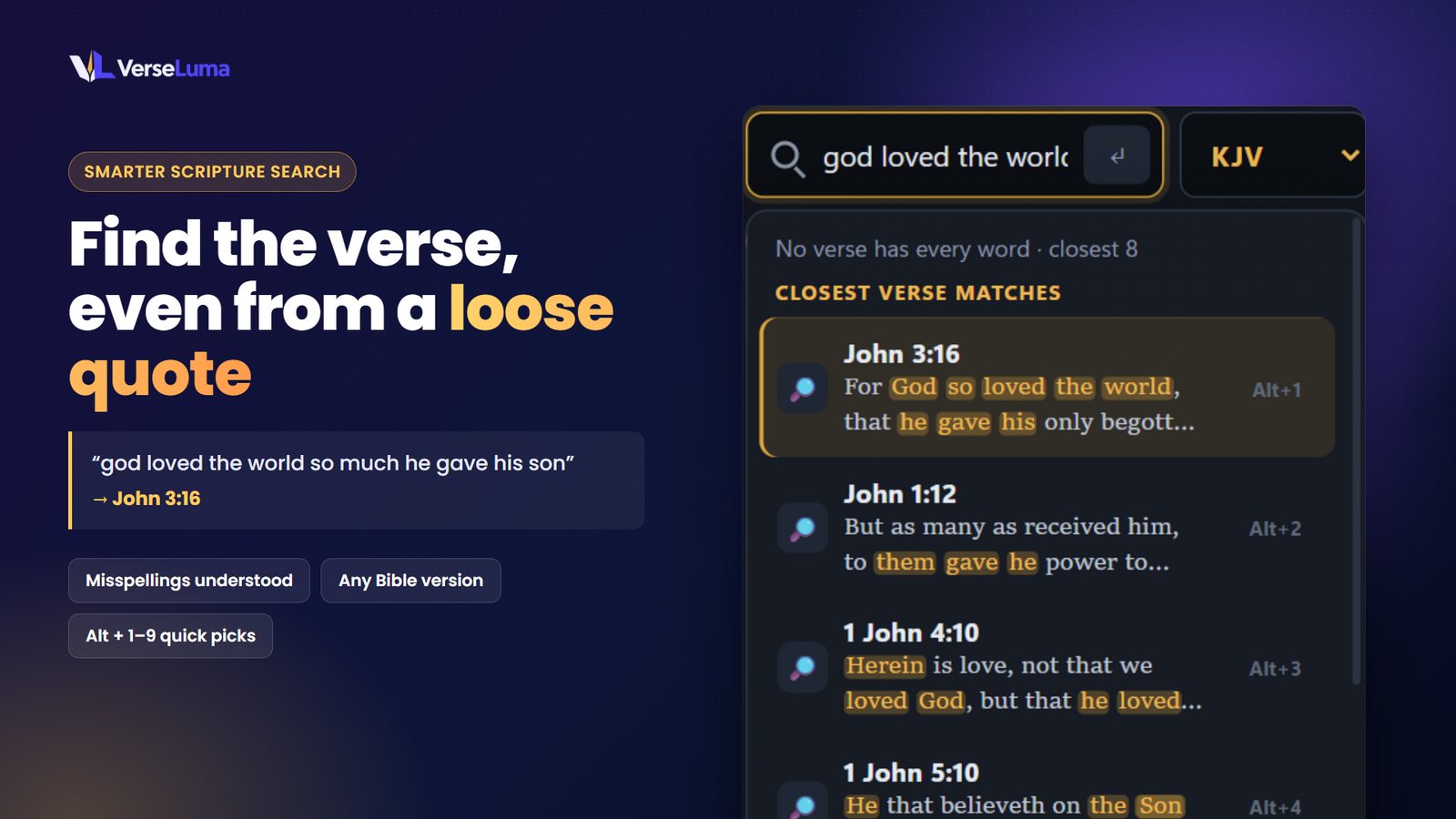
When the preacher quotes without giving the reference, type a few words you remember into the same search box, such as all things work together. VerseLuma:
- finds the verse even if the words are not exact — when no verse has every word, it shows the closest ones;
- understands small misspellings (“rightousness”);
- looks in your other open Bibles when the quote comes from another version (it says “found in KJV”), and still shows the verse in the version you chose;
- puts verses where your words sit close together, and well-known verses, first.