

User manual › Chapter 2
Projector and screens
Choose which screen shows the projector, the stage display and the livestream window, and fix the most common display problems.
VerseLuma can drive several outputs at once: the projector for the congregation, a stage display for the preacher and singers, and a livestream window for streaming software.
Choose the screens
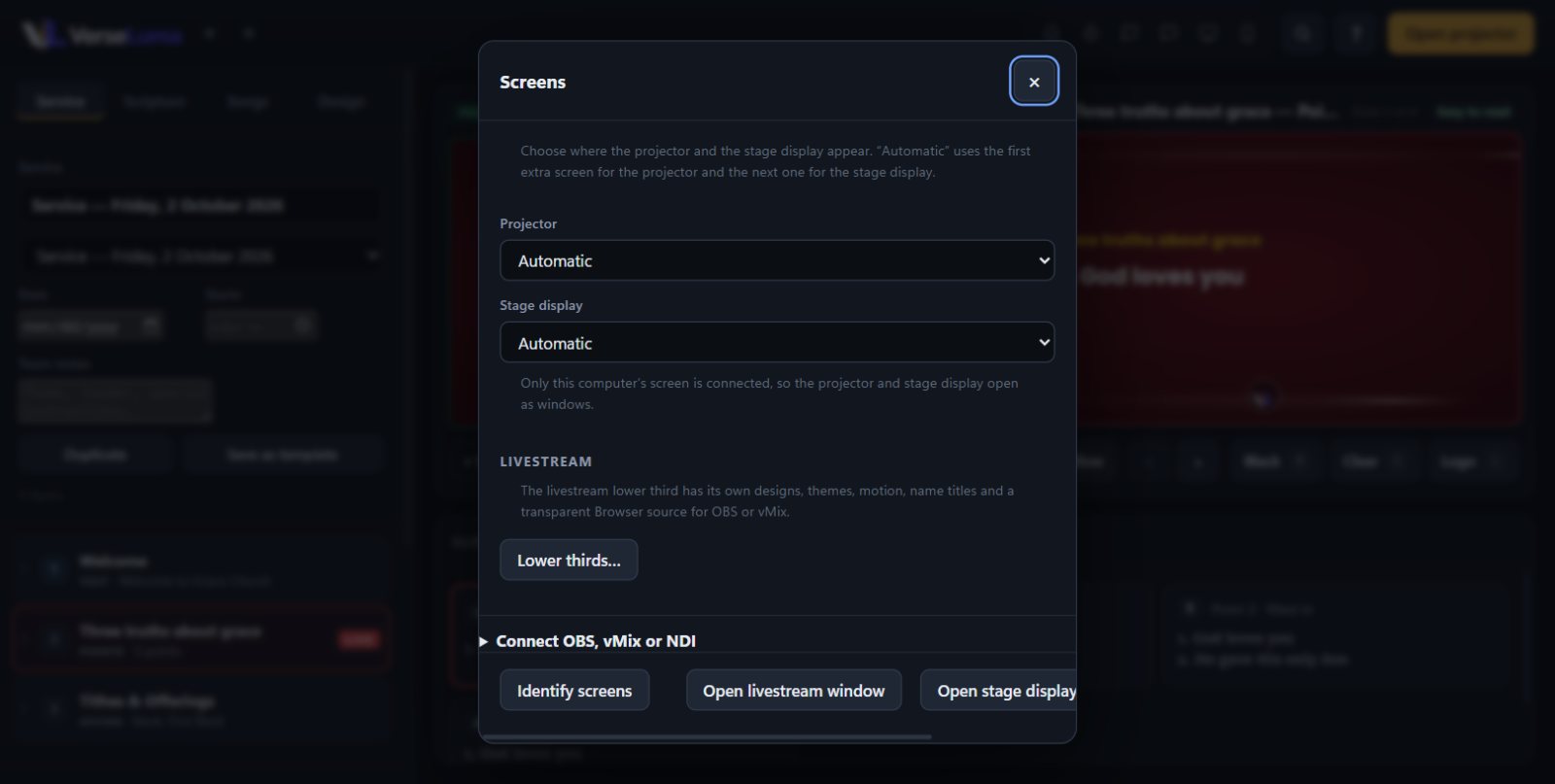
- Click the Screens button (the monitor icon in the top bar).
- Under Projector and Stage display, pick a screen — or leave Automatic, which uses the first extra screen for the projector and the next one for the stage display.
- Click Identify screens to flash each screen's number on it.
- Use Open projector, Open stage display and Open livestream window to open each one.
Windows display settings
- Press Win + P and choose Extend. With Duplicate, the congregation would see your operator window.
- In Windows Settings → System → Display, keep the projector at its native resolution (usually 1920 × 1080) and scale 100%.
- With only one screen, the projector opens in a normal window — handy for practising.
Preview and Live monitors
The Preview and Live boxes in the operator window are exact copies of the projector. The badge above each one (Easy to read, Readable or Hard to read) tells you how legible the slide will be. The sun button above Preview shows how the slide would look on a washed-out projector in a bright room.
Picture shape
VerseLuma fits the projector's shape automatically — 16:9, 16:10 or 4:3 — so text is never cut off.