

User manual › Chapter 1
Getting started
Install VerseLuma, learn the operator window and run your first passage on the projector in ten minutes.
1. Install VerseLuma
- Open the Microsoft Store on the church computer and search for VerseLuma, or use the download button on the home page.
- Click Get (or Install). The Store installs VerseLuma and keeps it up to date.
- When a new version is out, VerseLuma tells you with an Update available message — never while a slide is on the projector. Choose Download in background and keep working, then Install now between services (VerseLuma closes for a minute and reopens), or Open Microsoft Store. Later reminds you the next day. You can also check any time under ? → Check for updates.
- Open VerseLuma from the Start menu. No account or sign-in is needed.
Already using the downloaded version?Your songs and services live in that copy. Make a backup there and restore it in the Store version — see Backups.
2. The operator window
This is the window you work in. The congregation never sees it.
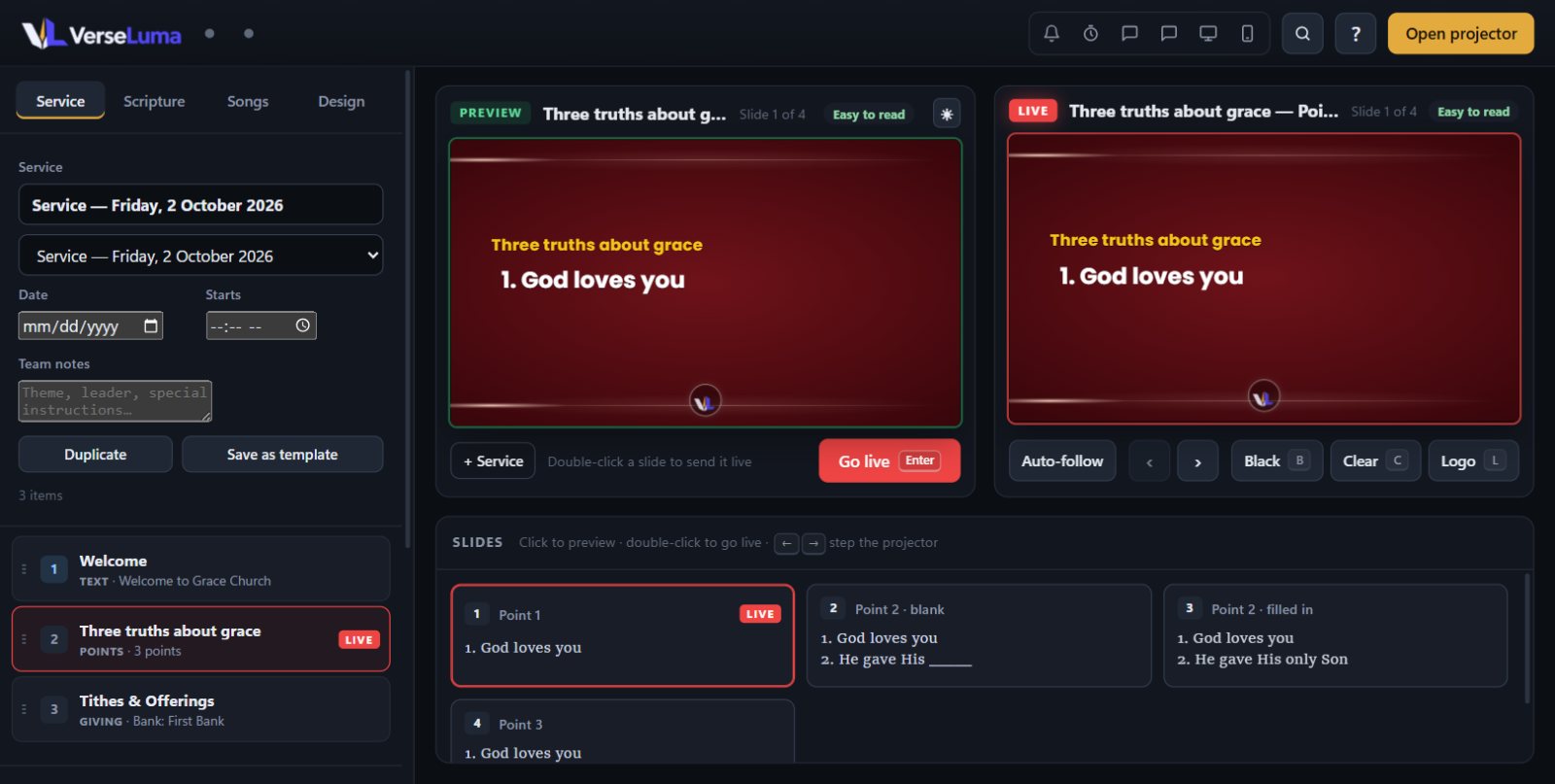
| Area | What it does |
|---|---|
| Tabs (left) | Service — the running order for today. Scripture — search and show passages, voice detection. Songs — the song library. Design — backgrounds, text, Looks and church branding. |
| Preview (green) | What you are about to show. Nothing here is seen by the congregation. |
| Live (red) | Exactly what is on the projector right now. |
| Slides | Every slide of the item on preview. Click to preview one, double-click to send it live. |
| Top bar | Alert, countdown, stage display, lower thirds, screens, phones, search (Ctrl + K), shortcuts (?) and Open projector. |
3. Connect the projector
- Plug the projector (or TV) into the computer and make sure Windows sees it as a second screen — Extend, not Duplicate (press Win + P).
- Click Open projector at the top right. VerseLuma opens full screen on the projector.
- If it opens on the wrong screen, see Projector and screens.
4. Show your first passage
- Click the Scripture tab.
- Type
john 3 16in the search box and press Enter. The passage appears on Preview. - Press Enter again (or click Go live). It is now on the projector.
- Press → to read on to the next verse, ← to go back.
- Press C to clear the words but keep the background, B for a black screen, L for your logo. Press the same key again to return.
5. Build your first service
- Click the Service tab. A service for today is already open.
- Add a song: in Songs, find it and click + Service under Preview (or Add what's on Preview).
- Add a passage the same way from Scripture.
- Add announcements, sermon points, a giving slide or a Connect slide with the buttons at the bottom of the Service tab.
- During the service, double-click an item to put it live, or press Ctrl + ↓ to preview the next item.
Next: learn about the projector and other screens, or jump to voice detection.